Different dictation styles for each app and website
Set dictation to write emails in Gmail, short replies in Slack and raw text on GitHub. How per-app and per-website rules work, with a 3-rule starter setup.
Dictation mode A dictation mode is a saved set of choices (speech model, language, rewrite style, output) that a dictation app applies when you talk in a given app or website.
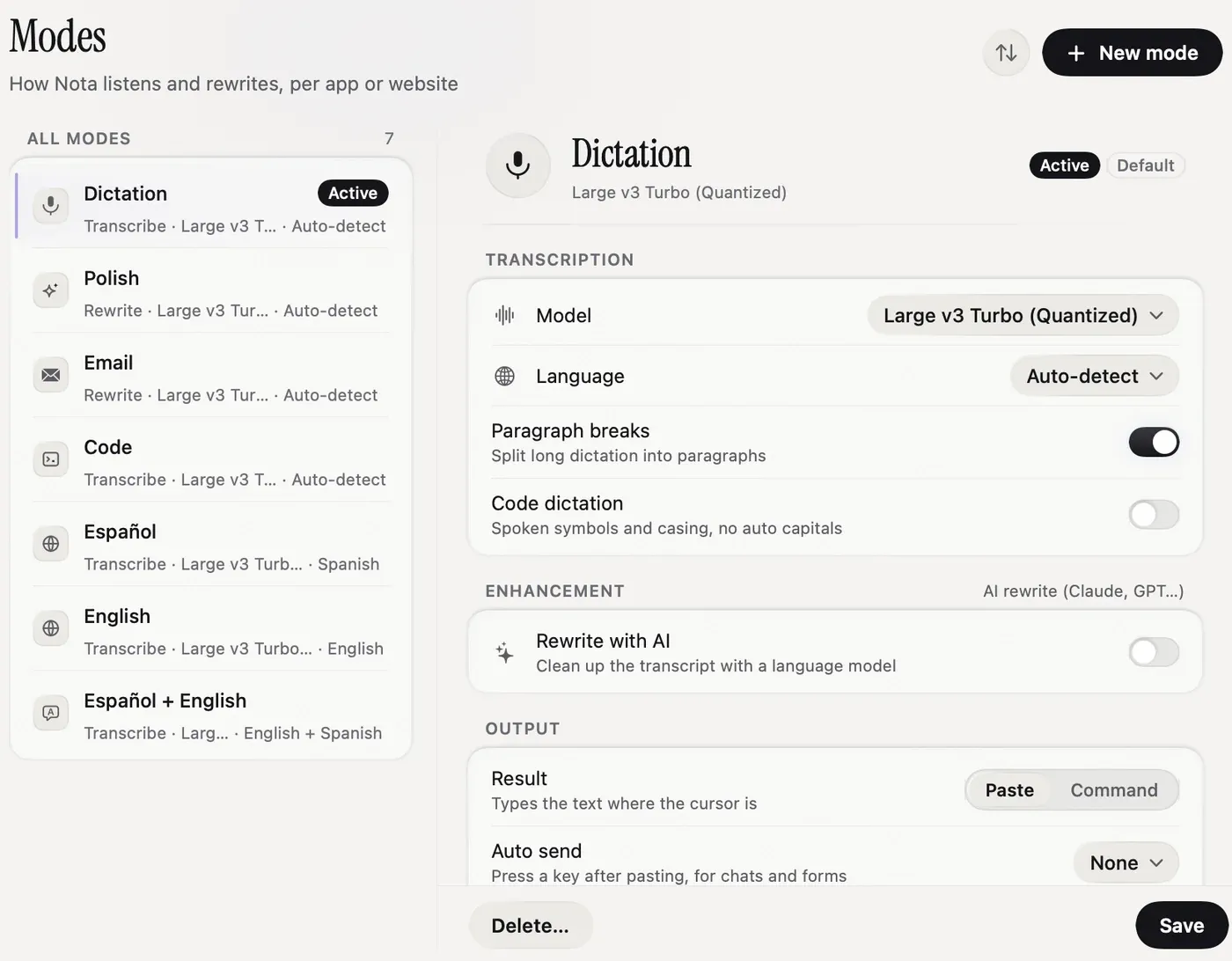
Set rules that pick a writing style by the app you are in, and inside a browser by the website: Email in Gmail, Work chat in Slack, plain text on GitHub. As of 2026-09-27, Nota matches rules by app and by website address (including a path) in 10 browsers, so Gmail, Linear and GitHub in the same Safari window can each get their own style. Setup takes three rules.
Why one dictation style fails
The same sentence needs different shapes in different places. A client email wants a greeting, full sentences and a sign-off. A Slack reply wants one line and no “Best regards”. A GitHub comment or a terminal wants exactly what you said, with no rewriting at all.
With one global style you end up fixing the output by hand in two places out of three. That is the edit dictation was supposed to save.
Rules by app
The simplest rule is by app. In Nota, open Modes, pick a mode, and add apps to it. Add Slack to a chat mode and Mail to an email mode. Next time you dictate in that app, the mode switches on its own.
One mode is always the default mode. It is used when no app or website matches. Keep it plain: correct punctuation and capitals, no change of tone.
If you use Smart Dictation instead of a custom rewrite, the styles already follow the app. Email applies in Mail, Outlook, and Gmail or Outlook in a browser. Work chat applies in Slack and Teams. Personal chat applies in Messages, WhatsApp and Telegram, where short messages lose the final full stop. Neutral covers everything else.
Smart Dictation also takes window titles into account, and you can add your own styles and rules. The most specific rule wins.
Rules by website and path
Most work now happens in a browser, so an app rule alone says little: “Safari” could be Gmail, Linear, X or a Google Doc. A website rule fixes that.
In Nota, add a web address to a mode, for example mail.google.com. Matching is loose: https:// and www. do not matter, and the rule matches any address that contains it. That means a path works too. github.com/your-org can get a different mode from the rest of GitHub.
Two rules decide conflicts:
- A website match wins over an app match. Safari can default to one mode while Gmail inside it gets another.
- If two modes match, the one higher in your mode list wins. Reorder with the sort button.
Website rules work in Safari, Chrome, Edge, Brave, Arc, Dia, Opera, Vivaldi, Orion and Yandex Browser. In other browsers, the app rule applies.
A 3-rule starter setup
This covers most of a working day. Create three modes (or edit the starter ones):
| Where | Mode | Style |
|---|---|---|
mail.google.com, Mail |
Rewrite as an email, keep my wording | |
| Slack | Chat | Short, no greeting, no sign-off, Auto send off |
github.com, Terminal, Cursor |
Raw | No rewrite, your exact words |
Leave Auto send off in the chat mode until you trust the output. Auto send presses Return after the paste, which in Slack means the message is gone before you read it.
The Raw mode matters more than it looks. Code comments, commit messages and prompts should keep your words. A rewrite step there adds cost and changes meaning.
Trigger words to switch by voice
Rules cover where you are. Trigger words cover what you want right now. Give a mode a trigger word, then say it at the very start or the very end of a dictation. Nota removes the word from the text and switches to that mode. The mode stays active for the next dictations until you switch again.
There are three more ways to switch by hand: the menu bar icon, the mode list on Home, and ⌥1 to ⌥0 while the recording pill is showing (your first ten modes, in list order).
Mode setup, rules and trigger words are in the Modes docs. The built-in styles are in Smart Dictation.
Sources
- Nota docs, Modes and Smart Dictation, checked 2026-09-27.
Questions
Can dictation change tone depending on the app?
Yes. Several dictation apps apply a style per app. Nota also matches websites and URL paths in supported browsers.
How does dictation know which website I am on?
It reads the current tab's address from supported browsers when you start dictating, then picks the first mode whose web address matches.
Can I switch mode by voice?
In Nota, yes: say a mode's trigger word at the very start or end of a dictation. The word is removed and the mode stays active until you switch again.
Nota is dictation for Mac: hold a key, talk, and it types. It is almost ready: get notified on release day, and the first 5,000 words will be free.