Docs Using Nota
Modes
A mode is a recipe: which model listens, which language, and what happens to the text. Modes can switch by app or website.
Open Modes in the sidebar. Setup gives you Dictation (plain text, the default), Enhancement (cleaned-up text) and Email. When you pick the languages you dictate in, Nota also sets up a dictation mode for each language. Change them, or add your own with New mode.
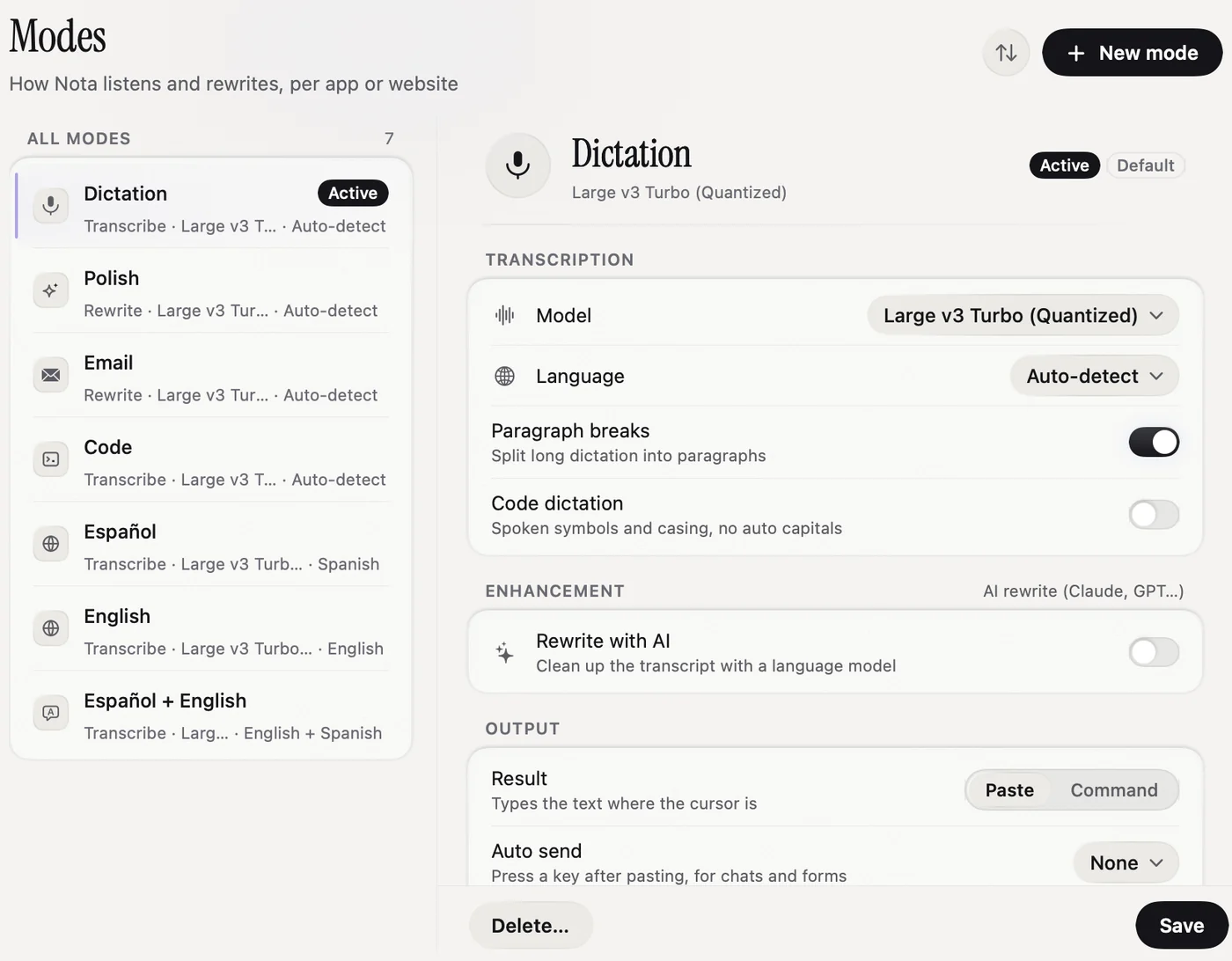
What a mode sets
| Setting | What it does |
|---|---|
| Model | Which speech model listens. See Local models and Cloud models. |
| Language | The language you speak, or Auto-detect. If the model does not support your choice, Nota uses auto-detect or the closest language it has. |
| Paragraph breaks | Splits long dictations into paragraphs. |
| Rewrite with AI | Sends the text to a language model with the mode's instructions, for example to fix grammar or write an email. Needs a provider key. |
| Result | Paste types the text where the cursor is. Respond asks AI and shows the answer in a panel instead of pasting (available when the mode has AI rewrite). Command hands the text to a shell command of your choice. |
| Auto send | Presses a key after pasting: None, Return, Shift-Return or Command-Return. Handy for chats and forms. |
| Default mode | Used when no app or website matches. One mode is always the default. |
| Switch and record | A shortcut that makes this mode active and starts a dictation. |
Click Save when you are done.
Switch by app or website
Add apps or websites to a mode, and Nota picks that mode by itself when you dictate there.
- Open the mode and go to Auto-switch.
- Click Add and choose an app, such as Mail, or type a website, such as gmail.com.
- Click Save. Next time you dictate in that app or on that site, the mode switches on its own.
- A website match wins over an app match. Web addresses match loosely: www. and https:// do not matter.
- Websites work in Safari, Chrome, Edge, Brave, Arc, Dia, Opera, Vivaldi, Orion and Yandex Browser.
- If two modes match, the one higher in your list wins. Use the sort button at the top to reorder.
Trigger words
A trigger word switches mode by voice. Add one in the same Auto-switch section with Add trigger, for example "email". Say it at the very start or the very end of a dictation. Nota removes the word from the text and switches to that mode. The mode stays active for your next dictations until you switch again.
Switch by hand
- Menu bar icon › Mode, then pick one. The current mode has a check mark.
- The mode list on the Home page.
- While the pill is showing: ⌥1 to ⌥0 for your first ten modes.
- A mode's own Switch and record shortcut.
Code dictation and spoken send
Code dictation recognises supported spoken symbols and casing instructions instead of treating everything as prose. It can use permitted window context as vocabulary hints. See Code dictation and snippets.
Output › Spoken send can recognise a separate ending phrase and press Return after the paste. It is off by default, enabled per mode and disabled in terminals. See Hands-free.
Rewrite with AI
Turn it on in a mode to have the text rewritten before it is pasted. You pick the provider and model, and write or choose the instructions. Under Context, a mode can also pass along your Clipboard, the Selected text in the active app, or the text on Screen (needs Screen Recording).
Command output
With Result set to Command, Nota runs your command on this Mac and sends the text to it on standard input and in the NOTA_TRANSCRIPT environment variable. Nothing is pasted. A command that runs longer than 10 seconds is stopped.
- Providers: OpenAI, Anthropic, Gemini, Groq, xAI, Mistral, Cerebras, OpenRouter, Ollama on your Mac, or your own custom endpoint.
- Very short dictations (three words or fewer) skip the rewrite. They are pasted as spoken.
- If the rewrite fails or takes too long, Nota pastes your original text and shows a notice. You never lose the dictation.
- History shows both versions, and Info shows the model and instructions used.
Protect meaning can reject a rewrite when important details are detected as missing or changed. It is a check on the AI output, not a guarantee of perfect rewriting. See Meaning Guard.
Not sure what instructions to write? Try Smart Dictation. It picks a style for you.