Docs Using Nota
Smart Dictation
Optional cleanup that fits the text to where it goes: an email, a work chat, a message to a friend.
Smart Dictation cleans up punctuation, capitals and small slips, and matches the tone to the app you are in. It is off by default. Turn it on in Settings › Smart Dictation.
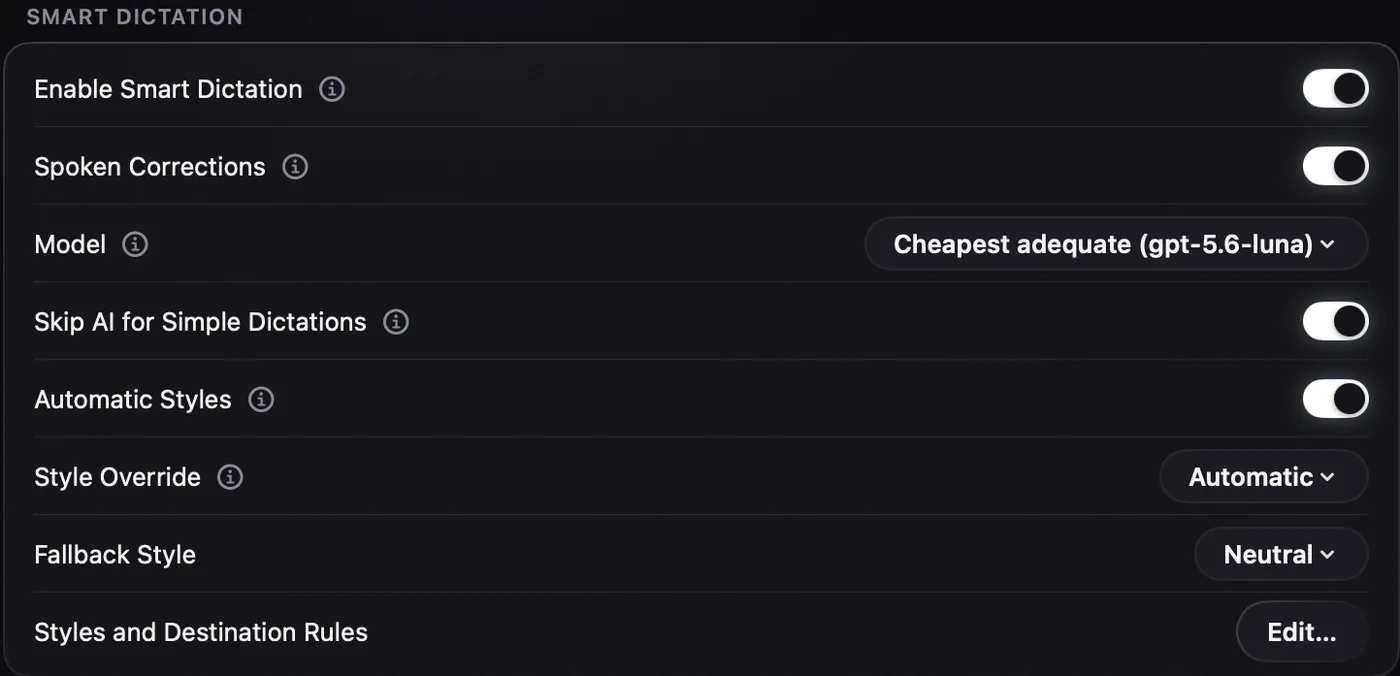
Turn it on
- Add a key for a provider that Smart Dictation can use, such as OpenAI. See Cloud models and keys.
- Open Settings › Smart Dictation and turn on Enable Smart Dictation.
- Leave Model on Cheapest adequate, or pick a model.
Smart Dictation runs only in modes where Rewrite with AI is off. A mode with its own rewrite keeps using it.
Styles
| Style | Used in |
|---|---|
| Neutral | Everywhere else. Plain, correct text. |
| Mail, Outlook, and Gmail or Outlook in the browser. | |
| Work chat | Slack and Teams, in the app or the browser. |
| Personal chat | Messages, WhatsApp and Telegram. Short messages lose the final full stop, like people really type. |
With Automatic Styles on, Nota picks the style from the app, the window and the website. Style Override forces one style everywhere. Fallback Style is used when no rule matches.
Your own rules
Click Edit… next to Styles and Destination Rules. Make a new style, or tell Nota which style to use for an app, a window title or a website. The most specific rule wins.
Spoken corrections
With Spoken Corrections on, you can fix yourself while you talk. Say "no, Thursday" or "scratch that" and Nota writes what you meant. If you take back the whole dictation, nothing is pasted.
Exact words and Meaning Guard
Choose Skip AI for Next Dictation in the menu bar to skip rewrite and Smart Dictation for one recording. An exact-words modifier on your shortcut can request the same behaviour. This skips AI text cleanup; the speech model, dictionary replacements and applicable text formatting still do their work.
Settings › Meaning Guard and the mode's Protect meaning option control checks for important details, such as numbers, names, links and negation. When the check rejects a rewrite, the original transcription can be used instead and the app shows a notice.
The guard is a best-effort check. Review important output yourself, especially after a rewrite or translation. Prompts meant to transform or translate text can have different protection defaults.
Simple dictations skip the model
Skip AI for Simple Dictations is on by default. A short, single-line sentence that already starts with a capital and ends with punctuation is pasted as is. It is faster and costs nothing.
If Smart Dictation cannot answer in time, you see Smart Dictation unavailable. Original text inserted. Your words are pasted unchanged.