Voice typing in Slack on a Mac, set up once
Slack's mic button records a clip, not text. How to type Slack messages by voice on a Mac, and how to give Slack its own short, casual dictation style.
Slack clip A Slack clip is a short audio or video recording posted as a message. It can have a transcript, but it is sent as media, not as typed text.
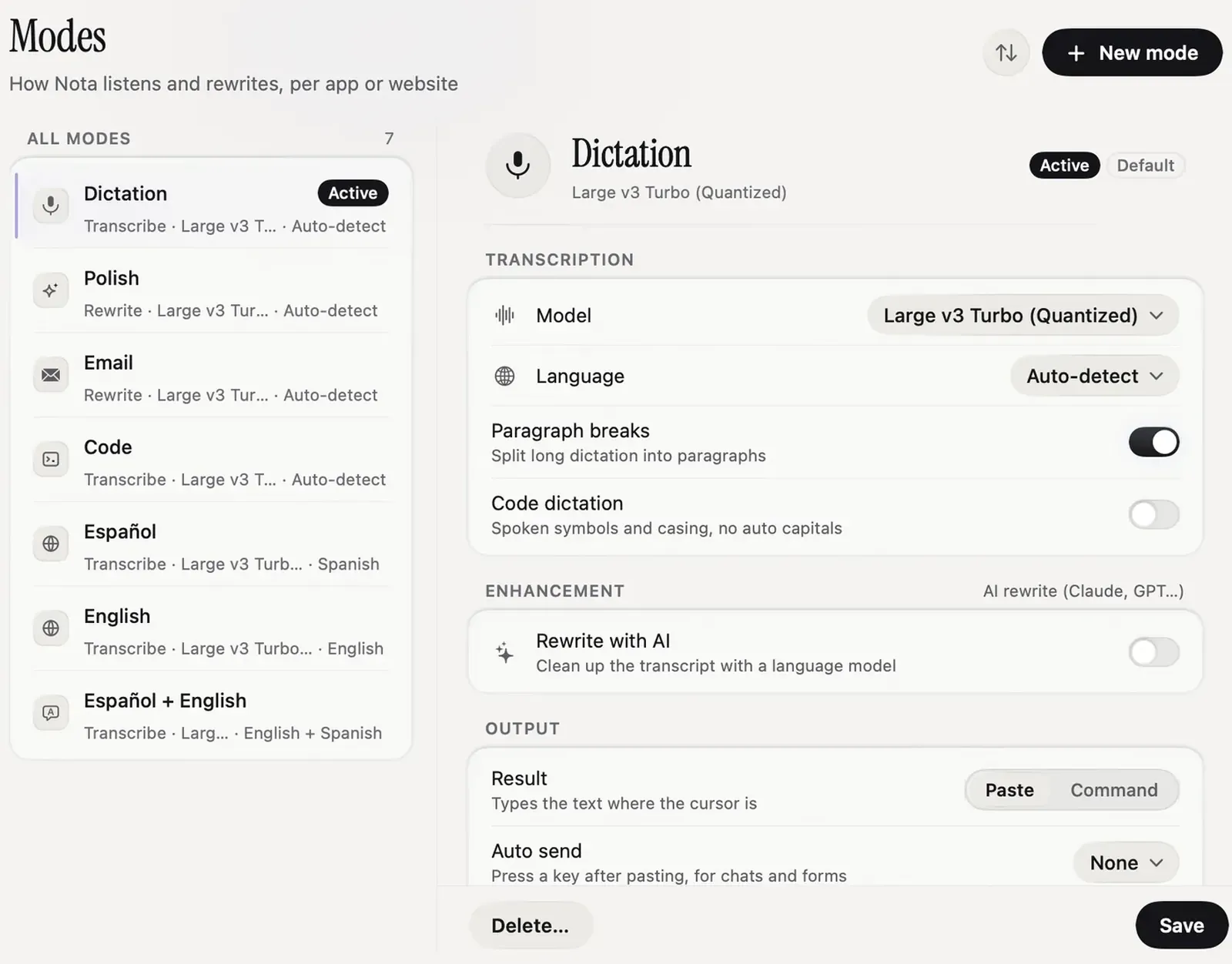
Slack’s microphone button records a clip, not text. To type a Slack message by voice on a Mac, click in the message box and use Apple Dictation or a system-wide dictation app; the text lands at the cursor like typing. As of 2026-09-27, a dictation app with per-app modes can also give Slack its own style: short, casual, no greeting or sign-off, while email elsewhere stays formal.
Slack clips are not text
The mic and camera icons in Slack’s message box record clips: short audio or video messages. Video clips get captions, and a transcript can be generated for a clip. The message itself is still a recording.
That is fine for a quick hello to a teammate. It is a poor fit for anything people need to skim, search, quote in a thread or act on. Most people who search for “voice typing in Slack” want text in the box, sent as a normal message.
| Method | Output | Style control |
|---|---|---|
| Slack clip (mic button) | An audio or video message, transcript optional | None |
| Apple Dictation | Text in the message box | One style everywhere |
| Dictation app with per-app modes | Text in the message box | Its own style in Slack, Auto send optional |
Built-in dictation in Slack
Apple Dictation works in Slack like in any text field:
- Click in the message box.
- Press the Microphone key, or your dictation shortcut (System Settings > Keyboard > Dictation).
- Talk. Press the key again to stop.
- Read it, then press Return.
It is free and adds punctuation. What it does not do is change tone by app, remove “um” and “uh”, or handle “no, I meant Thursday”. A Slack message ends up worded like an email, or an email like a Slack message.
A Slack-only style
A dictation app with per-app modes fixes that. The setup in Nota takes a minute:
- Open Modes and click New mode. Name it Slack.
- Add the Slack app, and the web address
app.slack.comfor Slack in a browser. A website rule works in Safari, Chrome, Arc and seven other browsers. - Pick the speech model and language.
- For the tone, either leave Rewrite with AI off and turn on Smart Dictation (Settings > Smart Dictation), which already uses its Work chat style in Slack and Teams, or turn Rewrite with AI on and write your own instructions, for example: “Short and direct. No greeting, no sign-off. Keep names, code and links exactly.”
- Leave Auto send on None at first. Set to Return, it sends the message as soon as it is pasted. Turn it on only once you trust the output.
- Save.
Next time you dictate in Slack, the mode switches on by itself. In Mail or Gmail, your email mode takes over again. If you want push-to-talk, set the recording trigger to Hold; see push-to-talk dictation.
Before and after
Here is the kind of change the Work chat style is meant to make. This is an illustration of the setting, not a benchmark.
What you say:
um so I pushed the fix for the login bug, uh, can someone review it before lunch, no, before two
What lands in Slack with the Work chat style and spoken corrections on:
Pushed the fix for the login bug. Can someone review it before 2?
The fillers go, the correction replaces “lunch”, and there is no “Hi team” or “Thanks”. In a mode without cleanup, you get your exact words with punctuation, which is what you want for code snippets and links.
One limit to know: very short dictations (three words or fewer) skip any rewrite and are pasted as spoken. “Sounds good” and “on it” arrive exactly as you said them.
Styles and spoken corrections are in the Smart Dictation docs; app and website rules in the Modes docs.
Sources
- Slack Help Center: Record audio and video clips in Slack, checked 2026-09-27.
- Nota docs, Modes and Smart Dictation, checked 2026-09-27.
Questions
Can Slack turn voice into text?
Not in the message box. Slack's clips record audio or video and can show a transcript, but they are posted as clips, not typed text.
How do I dictate a Slack message on a Mac?
Click in the message box and use Apple Dictation or a system-wide dictation app. The text lands where the cursor is.
Can dictation use a casual tone only in Slack?
Yes, with per-app modes. In Nota a mode can switch on in Slack and on app.slack.com, and Smart Dictation's Work chat style applies there by default.
Nota is dictation for Mac: hold a key, talk, and it types. It is almost ready: get notified on release day, and the first 5,000 words will be free.