Push-to-talk dictation on a Mac: set up a hold key
Hold a key, talk, let go, and the text is pasted. How to set up push-to-talk dictation on a Mac, which key to pick, and how to fix a shortcut that fails.
Push-to-talk means recording only while a key is held down: press, speak, release. Toggle means one press starts recording and a second press stops it.
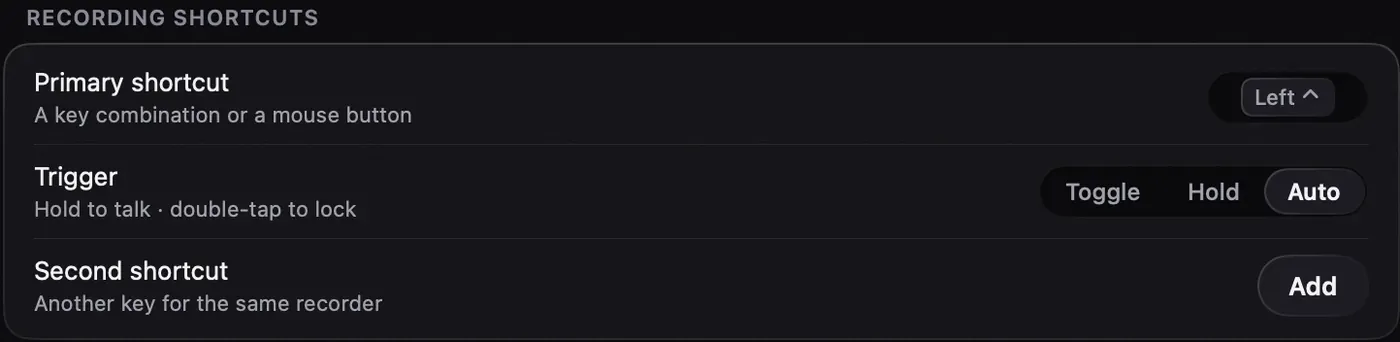
Use a dictation app with a Hold trigger: hold a key you never type with on its own (Right Option, Right Command, Fn or a spare mouse button), speak, and release to paste. Apple Dictation, as of 2026-09-27, starts and stops with a shortcut but has no hold-to-talk mode. In Nota, set it in Settings > Recording shortcuts: pick the key, then set Trigger to Hold or Auto.
Hold, toggle or auto
There are three ways a dictation key can behave. Pick by how long you usually talk.
| Trigger | Start | Stop | Best for |
|---|---|---|---|
| Toggle | Press once | Press again | Long dictation, hands free |
| Hold | Hold the key | Let go | Short messages, prompts, replies |
| Auto (Nota’s default) | Hold, or double-tap to lock | Let go, or press once after a lock | Both, without choosing |
Hold is true push-to-talk. The recording lasts exactly as long as your finger stays down, so you never forget to stop it. Nota ignores a tap shorter than a quarter of a second, so brushing the key starts nothing.
Toggle suits long takes: a whole email, a brief, meeting notes to yourself. The risk is leaving it running.
Auto combines them. Hold to talk for short things. For long ones, tap the key twice quickly: the recording pill stays on after you let go, and one more press finishes. A single quick tap does nothing.
Which key to use
The rule: a key that does nothing useful when pressed alone.
- Right Option or Right Command. Most people never press them alone. Watch out if your keyboard layout uses Option for accented letters (German, Polish, French and others): pick Right Command instead.
- Fn (Globe). Handy on laptops, but macOS may already use it. In System Settings > Keyboard, set the Globe key option to Do Nothing so it does not open the emoji picker or Apple Dictation at the same time.
- A mouse button. The middle click or a side button works well if you keep a hand on the mouse.
- Left Control. Works, and the settings above use it, but Control is part of many shortcuts.
A modifier key used for push-to-talk still works for its normal job. In Nota, a modifier-only shortcut counts only when it goes down and up with no other key in between, so ⌃C or ⌥-letter typing never starts a recording.
Nota will not accept a plain letter or number without a modifier (F1 to F20 are fine alone), Esc, common system shortcuts such as ⌘C, or a shortcut already in use. It tells you which app has it. You can add a second shortcut for the same recorder, for example a key and a mouse button.
Apple Dictation’s shortcut options
Apple Dictation is set in System Settings > Keyboard > Dictation. Per Apple’s guide, you can start it with the Microphone key on the top row, with the dictation shortcut (the choices include pressing a key twice, or Customize), or with Edit > Start Dictation.
It starts on the first press and stops on the next, or when you stop talking for a while. There is no hold-to-talk option, no per-app style and no choice of speech model.
Cancel and undo
Push-to-talk makes accidental recordings short, but you still need an exit.
- Cancel: press Esc twice within 1.5 seconds while the pill is showing. The first press shows a hint. Prefer one press? Set your own cancel key in Settings > Other shortcuts; that key cancels on a single press.
- Undo a cancel: a notice with an Undo button stays for 5 seconds. Undo transcribes the same recording with the same settings and pastes it. Starting a new dictation ends the offer.
Fixing a shortcut that does nothing
Work through these in order:
- Permissions. Global shortcuts need Accessibility access (System Settings > Privacy & Security > Accessibility). If it is missing, Nota shows “Accessibility permission missing” at launch. If Nota is already on in that list but the key still does nothing, turn it off and on again: macOS sometimes keeps a stale entry after an update.
- A conflict. Another app may own the key: a launcher, a window manager, or macOS itself (Fn and the Microphone key). Change one of them.
- A single quick tap. In Auto, one short tap does nothing by design. Hold the key, or tap twice to lock.
- The key is part of a chord. If you press another key within a second of a modifier-only shortcut, Nota treats it as typing and cancels.
- Secure input. Some password fields and apps block key monitoring while they are focused. Click elsewhere and try again.
Every shortcut is listed in the shortcuts docs; permissions are in Permissions and other fixes in Troubleshooting.
Sources
- Apple Mac User Guide: Dictate messages and documents, checked 2026-09-27.
- Nota docs, Shortcuts and Permissions, checked 2026-09-27.
Questions
Can Mac dictation be push-to-talk?
Apple Dictation starts and stops with its shortcut, with no hold-to-talk option. Hold-to-talk needs a third-party dictation app.
What key is best for push-to-talk?
A key you never type with on its own, such as Right Option, Right Command or Fn, or a spare mouse button.
How do I cancel a dictation?
In Nota, press Esc twice within 1.5 seconds. A notice with Undo stays for 5 seconds in case you cancelled by mistake.
Nota is dictation for Mac: hold a key, talk, and it types. It is almost ready: get notified on release day, and the first 5,000 words will be free.