Mac dictation not working? 9 fixes that actually work
Mac dictation not working? Check four settings first, then 9 fixes with exact System Settings paths, including the 30-second silence stop (2026-09-27).
Microphone source The microphone source is the input device Dictation listens to. It is set separately from the system input, in the Dictation settings.
If Apple Dictation stopped working on your Mac, check four things first: Dictation is on (System Settings > Keyboard > Dictation), the shortcut is the one you press, the right microphone is selected, and the language matches what you speak. That fixes most cases. The nine fixes below go from the quickest check to the slowest. Paths are for macOS 13 and later, checked on 2026-09-27.
Start with the quick checks
Before changing anything, open TextEdit, click into a new document and start Dictation there.
- If it works in TextEdit, your Mac is fine and the problem is the app or the text field you were in (fix 9).
- If the microphone icon appears but no text comes out, it is the microphone or the language (fixes 3 to 5).
- If nothing appears at all, it is the setting or the shortcut (fixes 1 and 2).
| Symptom | Likely cause | Fix |
|---|---|---|
| Nothing happens on the shortcut | Dictation off, or a different shortcut | 1, 2 |
| Mic icon shows, no text | Wrong microphone source or muted input | 3, 4 |
| Text is wrong or in another language | Wrong dictation language | 5 |
| It stops mid-thought | 30-second silence limit | 6 |
| Broke after an update | Settings or language files reset | 7 |
| The setting is greyed out | Screen Time or a work profile | 8 |
| Works in TextEdit, not in one app | That app or field blocks it | 9 |
Is Dictation switched off, or did the shortcut change?
1. Turn it on. Go to System Settings > Keyboard, scroll to Dictation, and turn it on. If it was already on, turn it off and on again.
2. Check the shortcut. In the same section, the Shortcut menu shows what starts Dictation: the Microphone key, pressing Fn (Globe) twice, pressing Control twice, or a custom one. Press exactly that. On some Macs, the “Press Fn key to” menu higher up in Keyboard settings is set to another action, so the double press never reaches Dictation. Pick a different shortcut if the two clash.
Is the right microphone selected?
3. Microphone source. Keyboard > Dictation has its own Microphone source menu. “Automatic” can pick a headset or a display microphone you are not using. Choose the one you speak into.
4. Input level. Open System Settings > Sound > Input, select the same microphone and speak. The level meter should move. If it doesn’t, raise the input volume, unmute the headset, or unplug and reconnect it. Bluetooth headsets sometimes connect in a mode where the microphone is poor or silent: try the Mac’s built-in microphone to rule that out. If other apps hear you and Dictation doesn’t, go back to fix 3: Dictation can listen to a different microphone than the rest of the system.
Is the language right?
5. Language and region. In Keyboard > Dictation, click Edit next to Languages and make sure the language you speak is checked. If you speak one language and Dictation expects another, you get nonsense or nothing. On Apple silicon, many languages run on the Mac. Others send audio to Apple and need an internet connection (Apple Support).
Why does it stop after a pause?
6. The silence limit. Apple Dictation stops by itself when it hears no speech for about 30 seconds (Apple Support). This is by design, not a fault. If you pause to think while you talk, restart it with the shortcut, or use an app that records for as long as you hold a key.
It broke after a macOS update
7. Reset after an update. Updates sometimes reset the Dictation switch, the shortcut or the language list. Go through fixes 1 to 5 again. Then turn Dictation off, restart the Mac, and turn it back on. Give it a few minutes on a working connection, since the Mac may need to download the language files again before it runs on-device. If it still fails after that, test in TextEdit again and in a second user account: if it works in the other account, the problem is in your own settings, not in macOS.
Is Screen Time blocking it?
8. Restrictions. Screen Time can switch Siri and Dictation off. Open System Settings > Screen Time > Content & Privacy and look for the Siri and Dictation switch under the app restrictions. On a work Mac, a management profile can do the same. If the Dictation setting is greyed out, ask whoever manages the Mac.
It works everywhere except one app
9. The app or field. Password fields never accept dictation. Some apps draw their own text fields, and some web editors ignore input they don’t expect. If TextEdit works and one app doesn’t, the fix is in that app: update it, try its web version, or dictate into a plain note and paste. Apple’s Dictation troubleshooting page lists more cases.
When should you use a different dictation app?
Everything above is free and worth doing first. Consider another app when the limits, not the faults, are the problem: the 30-second stop, no custom word list, no cleanup of “um” and repeats, and no way to choose the speech model.
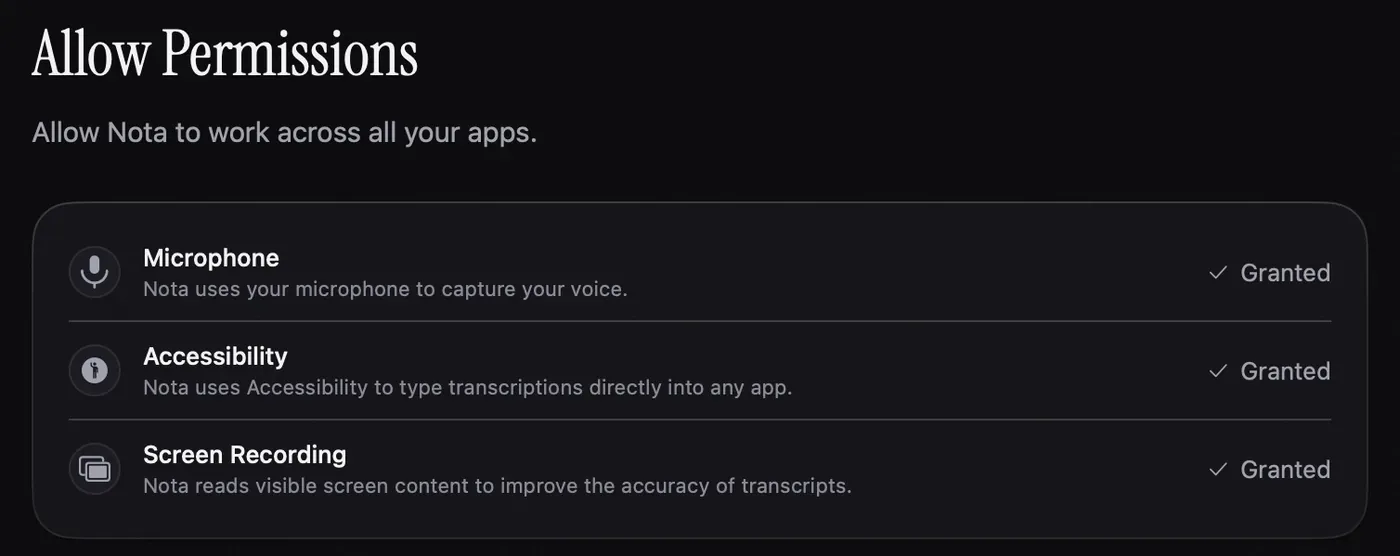
Third-party apps work differently and need different permissions. They need Microphone and Accessibility access in System Settings > Privacy & Security, since they record the audio themselves and type into other apps. If one of them stops working, those two switches are the first thing to check. A switch that is on but still fails can be reset by removing the app from the list with the minus button and adding it again.
Nota is one such app: it records while you hold a key, runs a local model with no internet or a cloud model on your own key, and the first 5,000 words are free. The troubleshooting guide covers its common problems, the permissions page shows each switch it needs, and audio settings explain how to pick the microphone it records from.
Questions
Why did dictation stop working on my Mac?
Most often it was switched off, the shortcut changed, or the wrong microphone is selected. Check System Settings > Keyboard > Dictation, then Sound > Input.
Why does Mac dictation stop by itself?
Apple Dictation stops after about 30 seconds without speech. Start it again with the shortcut, or use an app that records until you release a key.
How do I reset dictation on a Mac?
Turn Dictation off and on in System Settings > Keyboard, re-select the language and microphone source, then restart the Mac if it still fails.
Nota is dictation for Mac: hold a key, talk, and it types. It is almost ready: get notified on release day, and the first 5,000 words will be free.