Docs Getting started
Permissions
Grant microphone and Accessibility access; screen context, call audio and calendar hints use optional permissions.
macOS asks you to approve each permission once. Setup walks you through them in order. Each row turns to Granted when it is done.
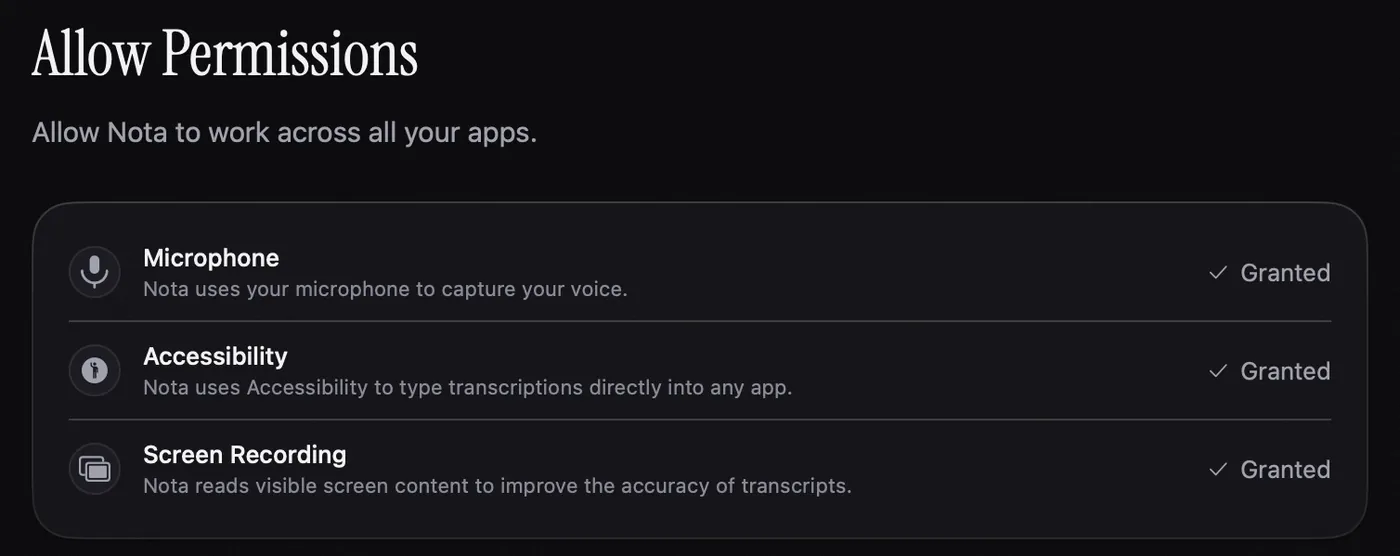
Setup permissions
| Permission | Needed? | What Nota uses it for |
|---|---|---|
| Microphone | Yes | To hear you while you dictate. A dictation or Notebook recording must be started before audio is recorded. |
| Accessibility | Yes | To paste into other apps, use global shortcuts, and read or replace an editable selection for Voice Edit. |
| Screen Recording | No | Lets a mode read the text on screen, so names and terms you can see are spelled right. Only used by modes that ask for it. |
Grant a permission
- Click Allow next to the permission.
- macOS shows a dialog, or opens System Settings › Privacy & Security.
- Turn on the switch next to Nota. You may need your Mac password.
- Come back to Nota and click Recheck if the row has not updated.
Grant the microphone first, then Accessibility. Continue becomes available once both are on.
After you turn on Screen Recording, macOS needs Nota to restart. Nota shows a Quit button for this. Open Nota again and setup continues where you left it.
Call audio
Notebook › Call audio needs permission to capture the sound playing on your Mac as well as microphone permission. macOS may list this under Screen & System Audio Recording or a system-audio control in Privacy & Security, depending on the macOS version. Follow the prompt shown when you enable Call audio.
This is optional for ordinary microphone dictation. If call-audio access is unavailable, Nota can keep recording your microphone and tell you that the system sound could not be captured.
Calendar hints
Notebook Settings › Show the calendar event asks for calendar access only when you turn it on. The event is used as a local title hint for a detected meeting. Keep it off if you do not want this access; notes can still be started manually.
If you denied a permission
The button changes to Open Settings. Click it, find Nota in the list, and turn the switch on. If Nota is not in the list, click the + button under the list and add it from Applications.