Docs Using Nota
Audio
Pick your microphone, choose the sounds, and control what happens to other audio while you talk.
Open Audio in the sidebar.
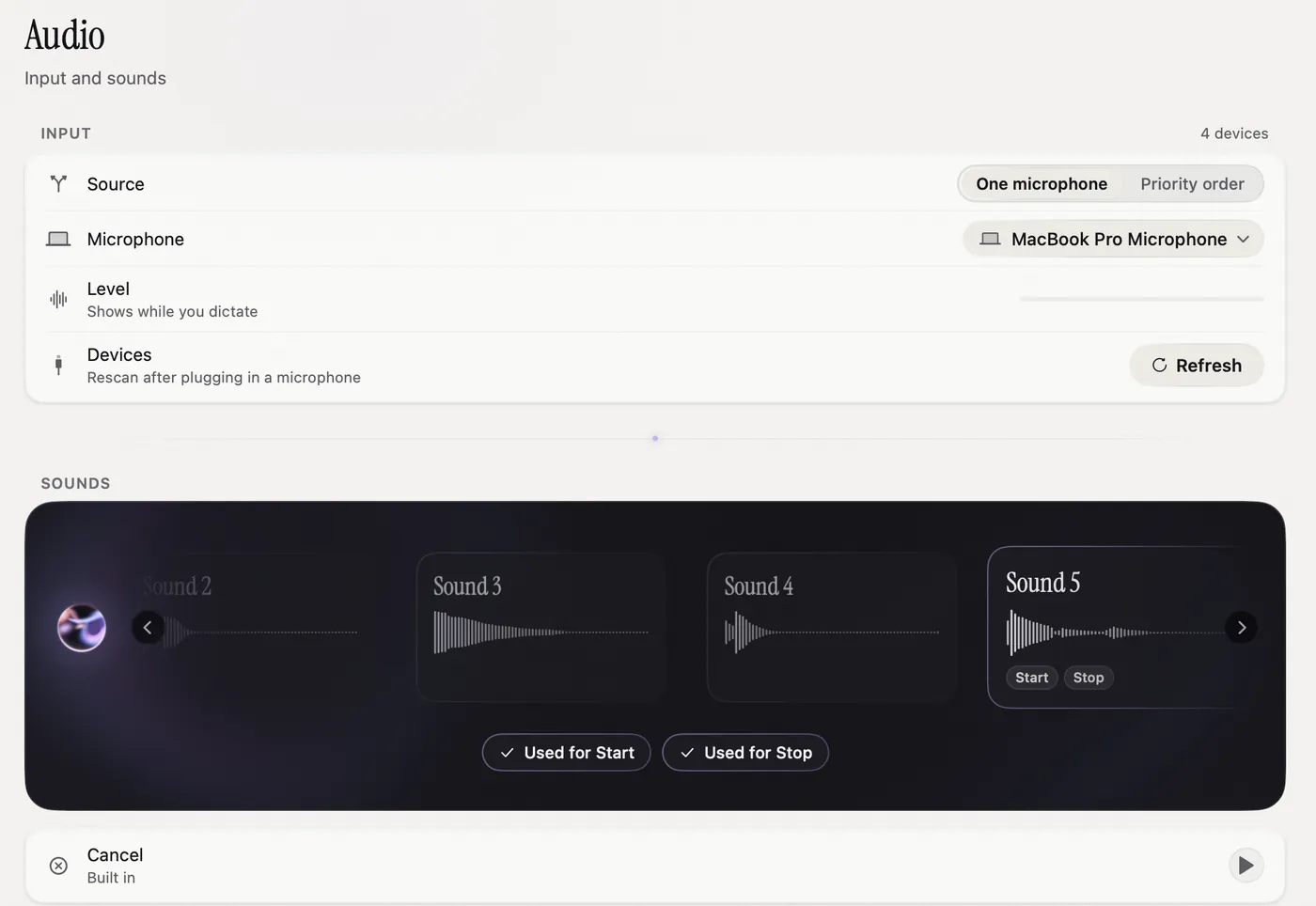
Choose a microphone
Source offers two ways:
- One microphone: pick a device in Microphone. Nota uses it every time. If it comes back on another port, Nota finds it again.
- Priority order: list several microphones in the order you prefer. Each dictation uses the first one that is connected. Good for a headset that is not always there.
Plugged in a new microphone and it is not listed? Click Refresh. The Level bar moves while you dictate, so you can check it hears you.
If a microphone disconnects
If your microphone drops out mid-dictation (a headset runs out of battery, you close the laptop lid), Nota switches to the next one and keeps recording. A notice says Switched to: and the device name. Review the result after an input interruption. If no microphone is left, Nota transcribes what it already has and asks you to choose one in Audio settings.
Sounds
Nota plays a short sound when it starts listening, when the text is ready, and on errors.
- Scroll the carousel with the arrows. Click a sound to hear it.
- Click Used for Start or Used for Stop to use the sound there.
- To use your own sound, scroll to Choose… at the end of the carousel and pick a file. It must be a playable audio file of 3 seconds or less.
You can also turn the start or stop sound off. The error sound plays only if at least one of them is on.
Behaviour
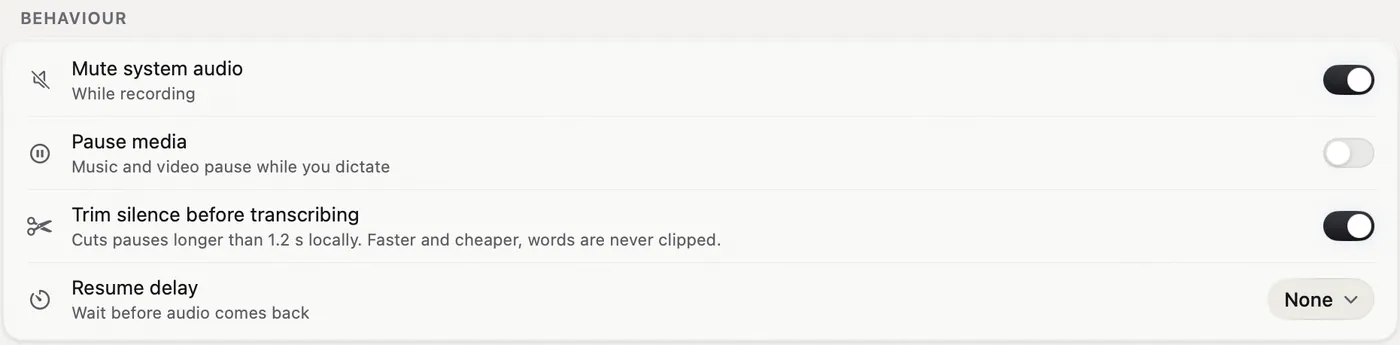
| Setting | Default | What it does |
|---|---|---|
| Mute system audio | On | Mutes your Mac's sound while you dictate, right after the start sound. If you had muted it yourself, Nota leaves it alone. |
| Pause media | Off | Pauses music or video while you dictate and plays it again after. If you pressed play yourself in between, Nota does not touch it. |
| Trim silence before transcribing | On | Cuts pauses longer than 1.2 seconds before the audio goes to the model. Faster and cheaper. Words are never clipped, and your saved recording is not changed. |
| Resume delay | None | Waits a moment after you stop before sound and media come back. |
Reliability guards
The first-words guard helps preserve audio at the start of a recording when the recording shortcut and microphone startup overlap. Use the corresponding Audio option if startup is clipping your first word; it does not change the model's recognition accuracy.
Nota can also warn when the microphone is silent or its shortcut event tap needs attention. Check the selected microphone, permission and live level before changing models. The app tries to process the audio it captured when an input fails, but device interruptions can still leave a gap.
For system sound from a call, use Notebook › Call audio and grant the separate system-audio permission. Ordinary dictation's media and mute settings do not enable call recording. See Notebook.
When nothing was said
If a recording is silent from start to end, Nota does not send it anywhere. You see a short notice and nothing is pasted. Short words like "yes" or "OK" always count as speech.