Docs Using Nota
Shortcuts
Choose how your key starts and stops a dictation, and how to cancel or undo one.
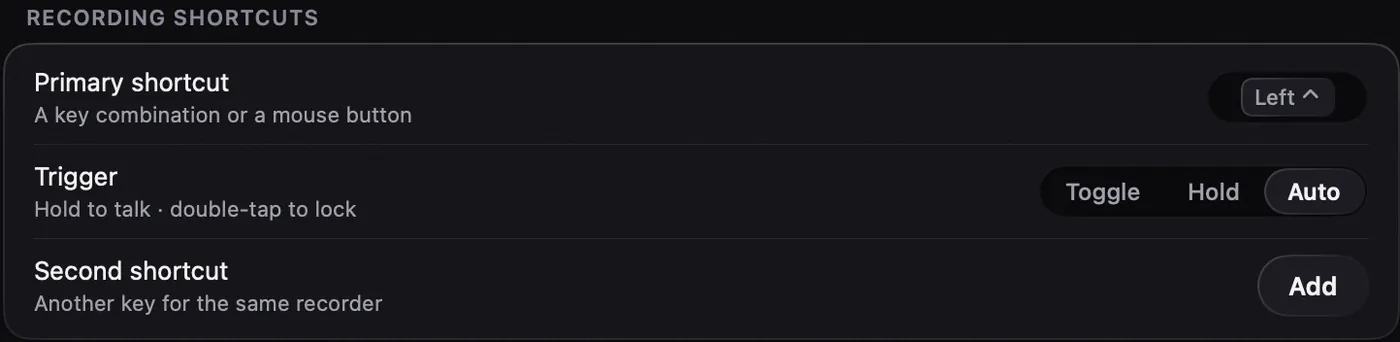
Set your shortcuts in Shortcuts › Recording. A shortcut can be a key combination, a single modifier key such as the left Control key, a function key, or a mouse button: middle click, the extra side buttons, or left or right click together with ⌃, ⌥, ⇧ or ⌘. A button you assign is used only by Nota, so a side button set for dictation no longer also goes Back in your browser.
Toggle, Hold or Auto
The Trigger setting decides how your shortcut starts and stops a dictation. It applies to all recording shortcuts.
| Trigger | How it works |
|---|---|
| Toggle | Press once to start. Press again to stop and paste. |
| Hold | Hold the key while you talk. Let go to stop and paste. A very short tap (under a quarter of a second) is ignored. |
| Auto (default) | Hold to talk, like Hold. Or double-tap to lock: talk hands-free, then press the key once to stop. |
Double-tap to lock
In Auto, tap the key quickly twice. The pill appears and keeps listening after you let go. Press the key again to finish. A single quick tap does nothing, so a stray press never starts a recording.
Cancel with Esc
- Press Esc twice within 1.5 seconds while the pill is showing. The first press shows the hint Press Esc again to cancel.
- You can also click × on the expanded pill.
- Prefer one press? Set your own key at Shortcuts › Other shortcuts › Cancel recording. Then that key cancels on a single press.
Undo a cancel
After a cancel, a notice says Transcript cancelled with an Undo button. It stays for 5 seconds. Undo transcribes the same recording with the same settings and pastes it. Starting a new dictation ends the Undo offer.
More shortcuts
All are optional. Set them on the Shortcuts page, or in the panel named below.
| Action | Where to set it |
|---|---|
| New note | Shortcuts, or Notebook settings |
| Voice edit | Shortcuts; configure its AI in Settings › Voice Edit |
| Remove last dictation | Shortcuts; see Delivery and undo |
| Second recording shortcut | Shortcuts › Recording |
| Paste last transcription (original or cleaned-up text) | Shortcuts › Other shortcuts |
| Retry last transcription | Shortcuts › Other shortcuts |
| Open Quick History | History › settings (gear) |
| Quick Add to Dictionary | Dictionary › settings |
| Switch to a mode and record | Modes › the mode › Shortcut |
While the pill is showing, ⌥1 to ⌥9 and ⌥0 switch to your first ten modes, in the order of your mode list.
From the menu bar: ⇧⌘C copies the last transcription and ⇧⌘H opens Quick History.
Hands-free, exact words and reliability
Shortcuts › Hands-free can stop a locked recording after silence and customise spoken send phrases. Both features are optional. See Hands-free and spoken send.
Skip AI for Next Dictation in the menu bar skips AI rewrite and Smart Dictation for one recording. An exact-words modifier can also be configured for the recording shortcut. Speech recognition and dictionary/text formatting still apply. See Exact words and Meaning Guard.
Nota monitors whether macOS has paused its shortcut event tap and can warn you when the shortcut needs attention. Audio settings also offer a first-words guard and silent-microphone notices; see Audio reliability.
macOS Shortcuts can also use Nota's actions to toggle or dismiss the recorder and start or stop a note. These are separate from the keyboard shortcuts configured in Nota.
Keys Nota will not accept
- A plain letter or number with no modifier (F1 to F20 are fine on their own).
- Esc, which is kept for cancel.
- Common system shortcuts such as ⌘C or ⌘Q.
- A shortcut already in use. Nota tells you what uses it.