How to transcribe an audio file to text on a Mac
Three ways to turn an audio or video file into text on a Mac: Voice Memos and Notes for free, a local Whisper app, or a cloud API. Formats and limits.
Transcription is turning recorded speech in an audio or video file into written text. It can run on your Mac with a local model or on a provider's servers through an API.
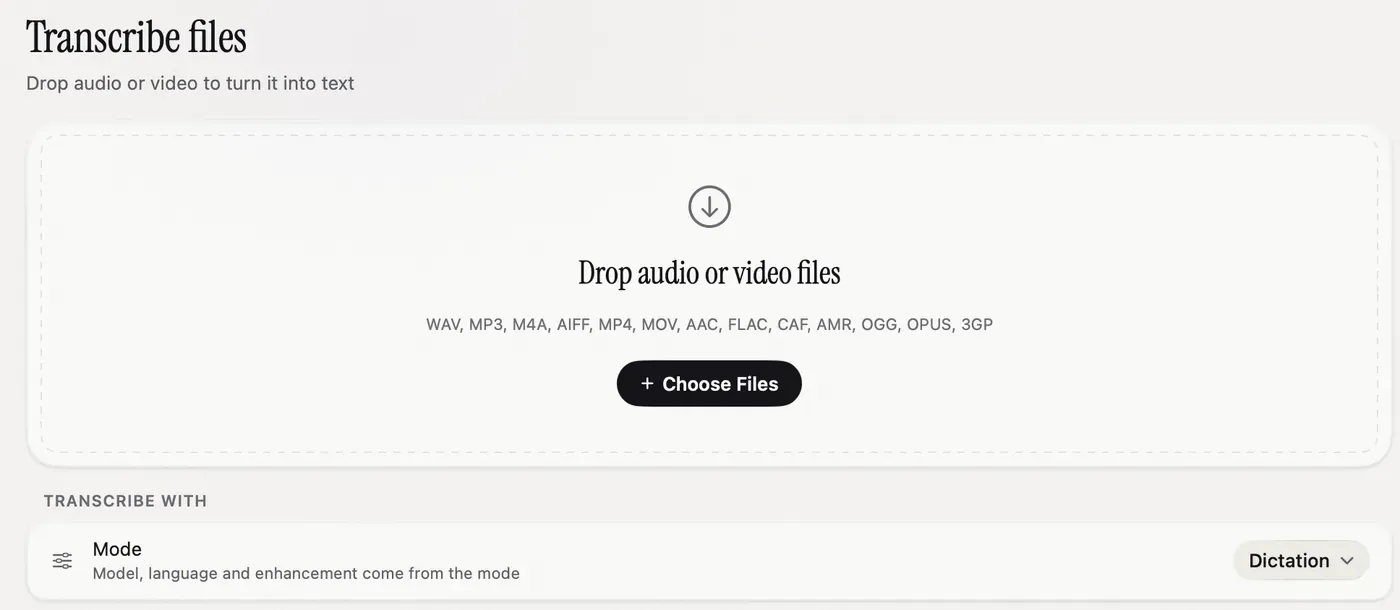
On macOS 15 or later, Voice Memos and Notes can transcribe a recording for free, as of 2026-09-27. For any other file (an interview, a podcast, a screen recording), drop it into a transcription app that runs a local model such as Whisper or Parakeet: it costs nothing and the audio stays on your Mac. Use a cloud API only when you need a language or audio quality the local model struggles with.
Free: Voice Memos and Notes
Apple added transcripts to Voice Memos and to audio recordings in Notes in macOS 15 Sequoia.
Voice Memos:
- Record in Voice Memos, or open an existing recording.
- Select it and click the transcript button to show the text.
- Select the text and copy it wherever you need it.
Notes: record audio inside a note, and the transcript appears with the recording. You can search it and copy from it.
The catches, per Apple’s Voice Memos guide: transcription is not available in every country or region, and the language support is narrower than Whisper’s. Both work on recordings made in those apps. For an MP3 a client sent you or a video from your camera, you need something else.
Local: transcribe files with Whisper or Parakeet
A local model runs the speech recognition on your Mac’s own chip. No upload, no per-minute bill, and it works on a plane.
In Nota:
- Open Transcribe in the sidebar, or choose Transcribe File from the menu bar icon.
- Under Transcribe with, pick a mode. The mode sets the model, the language and any cleanup, so a mode using Parakeet or Whisper runs fully on your Mac.
- Drop one or more files on the page, or click Choose Files.
- Nota works through them one by one and shows each step. Long pauses are trimmed first, so long files go faster.
- Each transcript is saved to History. Open it there to copy it, or export a selection as Markdown, plain text or CSV.
Which model? Parakeet V3 (494 MB) is fast and covers 25 European languages. Whisper large-v3 turbo (1.5 GB, or 547 MB quantized) covers about 99 languages. The local models docs list the rest.
From the terminal, if you prefer free and scriptable: whisper.cpp runs the same Whisper models. Convert the file to 16 kHz mono WAV with ffmpeg, then run whisper-cli -m ggml-large-v3-turbo.bin -f audio.wav -otxt. It works well; you manage the models and the conversions yourself.
Three habits make file transcripts cleaner:
- Set the language in the mode when the whole file is in one language. Auto-detect can guess wrong on the first seconds of a recording.
- Add names and jargon to the dictionary. Nota passes dictionary terms to most models as hints (Whisper gets them in its prompt; Parakeet does not take hints), so a client name or product code comes out spelled right.
- Retranscribe instead of fixing by hand. If a transcript is poor, open it in History and choose Retranscribe with a larger model. The recording is kept, so you do not need the original file again.
MacWhisper is another Mac app built mainly around file and meeting transcription, with speaker labels and subtitle export. If subtitles are the goal, look at it.
Cloud: when and what it costs
Cloud speech models are worth it for hard audio: several people talking over each other, heavy accents, a noisy room, or a language your local model does not cover.
At list prices as of 2026-09-27, one hour of audio costs about $0.04 on Groq’s Whisper large-v3 turbo, about $0.27 on OpenAI’s GPT Transcribe and about $0.22 on ElevenLabs Scribe. A one-hour interview is under half a dollar on any of them.
Watch the size limit. OpenAI’s speech-to-text API rejects uploads over 25 MB, which is about 13 minutes of speech in a typical file. Longer recordings fail there; use a local model or another provider for them.
The limit is on file size, not length. When you call the API yourself, a compressed file fits more: a 64 kbps mono M4A holds about 50 minutes in 25 MB. Apps that send uncompressed 16 kHz audio reach the limit at about 13 minutes. In Nota, a cloud model runs on your own API key, and the provider bills you directly.
Supported formats and limits
| Method | Cost | Works offline | Formats | Limits |
|---|---|---|---|---|
| Voice Memos (macOS 15+) | Free | Not stated by Apple | Its own recordings | Some countries and languages only |
| Notes audio (macOS 15+) | Free | Not stated by Apple | Its own recordings | Some countries and languages only |
| Nota, local model | Included in the app | Yes | WAV, MP3, M4A, AIFF, AAC, FLAC, CAF, AMR, OGG, OPUS, MP4, MOV, 3GP | No practical length limit |
| whisper.cpp (terminal) | Free | Yes | WAV; convert others with ffmpeg | None; you manage the setup |
| OpenAI API | about $0.27 an hour | No | MP3, MP4, MPEG, MPGA, M4A, WAV, WEBM | 25 MB per file |
For video files, only the sound track is used. If a file will not open in Nota, it says “Couldn’t read audio from this file”; converting it to M4A or WAV usually fixes it.
Privacy: where the file goes
With whisper.cpp or a local model in Nota, the audio is processed on the Mac and nothing is uploaded. Apple’s Voice Memos guide does not say where its transcripts are made; if that matters, test with Wi-Fi off.
With a cloud model, the file goes to that provider under its terms. In Nota it goes straight from your Mac to the provider with your key; Nota has no transcription server of its own and never receives the file. For recordings under NDA, or anything with health or legal details, pick a local mode.
What stays behind matters too. Nota keeps each transcript, and the recording, in History on your Mac until you delete it. History settings can auto-delete transcripts after a set time (from right away to 7 days) and recordings after 1 to 30 days. Both are off by default. Where your voice goes covers every setup.
Step by step with screenshots: Transcribe files.
Sources
- Apple Support: View a transcription of a recording in Voice Memos on Mac and Notes on Mac user guide, checked 2026-09-27.
- OpenAI speech-to-text guide: 25 MB limit and formats, checked 2026-09-27.
- whisper.cpp on GitHub, checked 2026-09-27.
- Nota docs, Transcribe files, Local models and Cloud models, checked 2026-09-27.
Questions
Can a Mac transcribe audio for free?
Yes. On macOS 15 and later, Voice Memos and Notes can transcribe their own recordings, where the feature is available in your country and language.
How do I transcribe a video file on a Mac?
Drop it into a transcription app; only the audio track is used. Nota accepts MP4, MOV and 3GP video files.
Is there a size limit for transcribing files?
Local models have no practical limit. OpenAI's API caps uploads at 25 MB, about 13 minutes of speech.
Nota is dictation for Mac: hold a key, talk, and it types. It is almost ready: get notified on release day, and the first 5,000 words will be free.