Docs Using Nota
Transcribe a file
Turn an audio or video file into text. The result is saved to History.
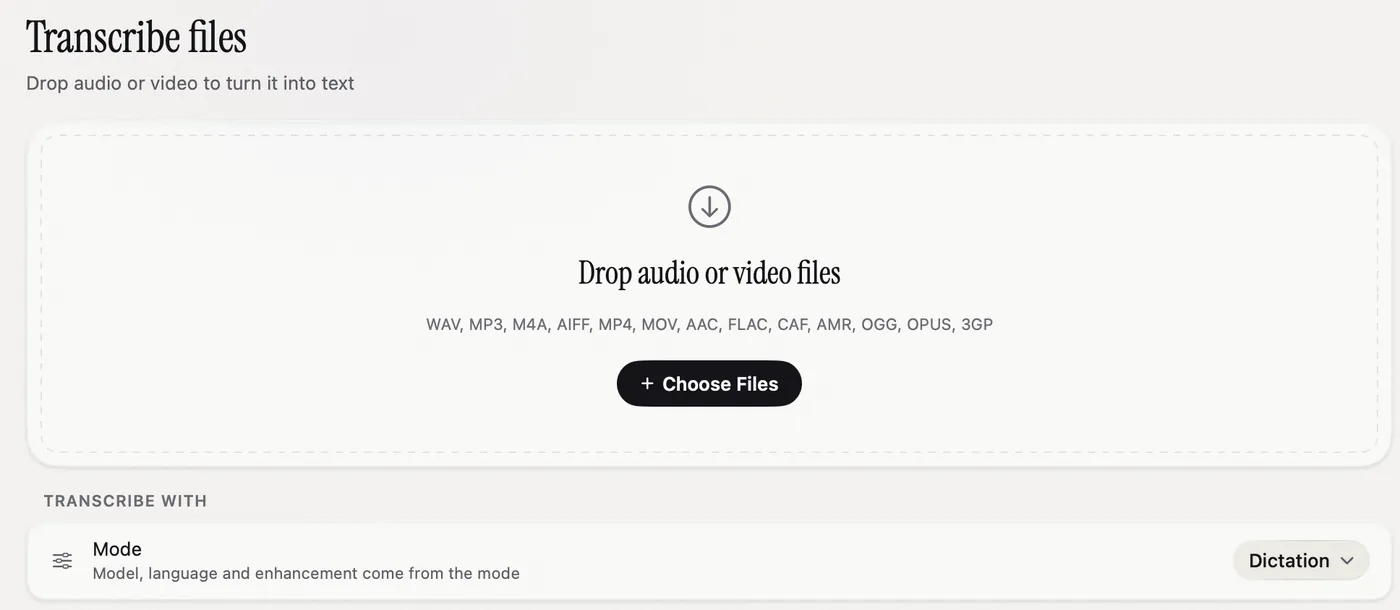
Open Transcribe in the sidebar, or choose Transcribe File… from the menu bar icon.
Steps
- Under Transcribe with, pick a Mode. The model, language and any rewrite come from that mode.
- Drop one or more files on the page, or click Choose Files.
- Nota works through the files one by one and shows each step.
- The text of each file is saved to History, just like a dictation. Open it there to copy, export or replay it.
Supported files
Audio: WAV, MP3, M4A, AIFF, AAC, FLAC, CAF, AMR, OGG, OPUS. Video: MP4, MOV, 3GP. For video, only the sound is used.
Tips
- Long pauses are trimmed first, as in a dictation, so long files go faster.
- Local models handle long files well. With OpenAI, files over 25 MB (about 13 minutes) fail. See Cloud models.
- During the free trial, words from files count toward your 5,000 free words. See License.
- If a file cannot be read, Nota says Couldn't read audio from this file. Try converting it to M4A or WAV.