Dictation for writers on a Mac: a working setup
A Mac dictation setup for writers as of 2026-09-27: draft raw without a rewrite, teach it character names, and transcribe walk-and-talk recordings later.
Raw mode vs cleanup Raw mode pastes exactly what the speech model heard. Cleanup sends that text through a language model that removes fillers and reshapes sentences before pasting.
The setup that works for writers: dictate drafts raw, with no rewrite step, so the tool never touches your sentences. Add character and place names to a custom dictionary so they come out spelled right. Keep the cleanup pass for email and admin. Record walk-and-talk sessions on your phone and transcribe the file later. Everything below works in Nota 1.1.3 as of 2026-09-27, and most of it in other apps too.
Why draft raw and edit later?
Cleanup tools are built for email. They remove fillers, fix grammar, split long sentences and smooth the tone. That is exactly what you want in a reply to a client, and exactly what you don’t want in a scene you are drafting.
A cleanup pass will turn a deliberate fragment into a full sentence. It will swap an odd word for a common one. It can flatten dialogue that is meant to sound like speech. You won’t always notice, because the result reads fine. It just reads less like you.
So draft raw. You get “um” and false starts in the text, and you cut them when you edit, which you were going to do anyway. The words that stay are yours. If you want a tidy copy for a reader, run the cleanup on a finished section later, on purpose, and compare.
How do you get character and place names right?
Invented names are where dictation fails most. No speech model has heard of your city or your protagonist, so it writes the nearest real word.
Three tools fix that, in order:
- Dictionary words. Add each name to the dictionary. Nota passes dictionary words to the speech model as hints, so it is more likely to write the name you meant in the first place.
- Replacements. If a name still comes out as the same wrong word every time, add a replacement: when Nota writes the wrong word, it pastes your name instead. Only do this when the wrong word never appears in your book for real.
- Learning from fixes. When you correct a name after it is pasted, Auto Learn notices the change and offers to add it. Its review step uses the language model provider you configured, so it is not an offline feature. You can set review to manual and approve each proposal yourself.
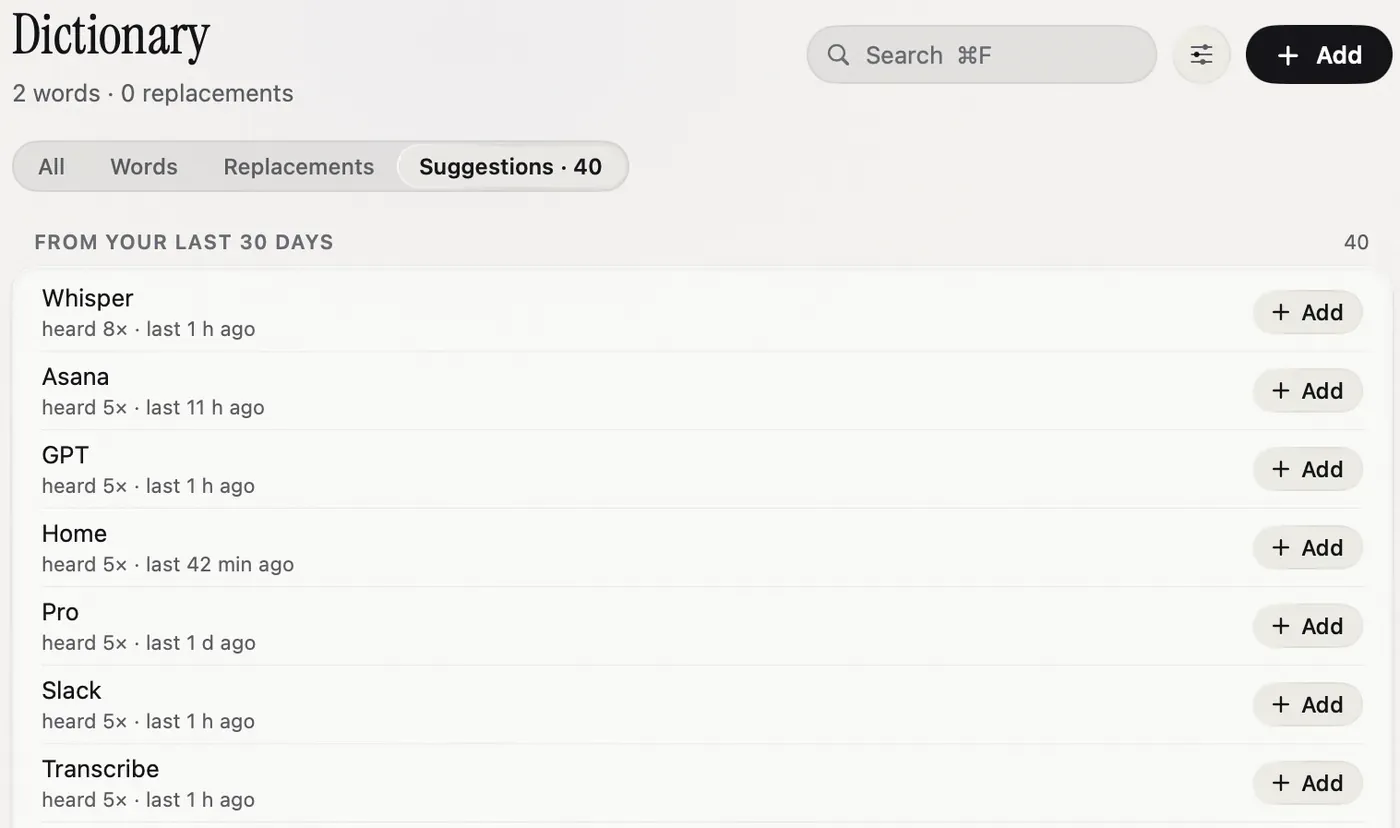
Nota also scans the last 30 days of your dictation for names and terms it keeps hearing and lists them as suggestions (the screenshot above). One click adds each.
Dictating while walking: record, then transcribe the file
Some writers think better on their feet. Don’t try to dictate live into a document on a walk. Record instead.
- Record a voice memo on your phone. Talk as long as you like.
- Back at the Mac, drop the file into Nota’s Transcribe page. It trims silence, transcribes with the model of the mode you pick, and saves the result to History.
- Copy the raw text into your draft and start editing.
Your dictionary applies here too, so the names come out right in the file as well.
For long recordings, use a larger local model. You aren’t waiting for each sentence, so the extra time costs nothing.
Setup: two modes
A mode in Nota is a preset: speech model, language and whether text is rewritten. Writers need two.
| Task | Mode | Setting |
|---|---|---|
| Drafting fiction or essays | Draft | Rewrite off, Smart Dictation off, your best local model |
| Email and messages | Email style on, switches on in Mail and Gmail | |
| Names and terms | (all modes) | Dictionary words, plus replacements for repeat mistakes |
| Walks and long takes | Draft | Drop the recording into Transcribe |
Modes can switch on their own by app and by website. Give the Email mode Mail and gmail.com, and leave the Draft mode for your writing app. You stop thinking about which one is on.
Which tools work for writers?
The free option is Apple Dictation. It is raw by default, which suits drafting, but it stops after about 30 seconds of silence (Apple Support), and a writer who pauses to think gets cut off. It has no custom word list either, so invented names stay a problem.
Paid apps differ mostly in one thing: whether you can turn the rewrite off per task. Tools built only around cleanup make drafting harder. Look for per-app or per-mode control and a dictionary you can edit. Nota costs $79 once for one Mac ($59 early bird until December 31, 2026), and the first 5,000 words are free, which is about one short chapter of drafting: enough to find out whether talking a draft suits you before you pay anything. Kindlepreneur’s dictation software roundup covers the wider market for authors.
The dictionary guide shows words, replacements and suggestions in detail.
Questions
What is the best dictation setup for writing fiction?
Dictate drafts with no rewrite step, keep a dictionary of character and place names, and edit on the page afterwards.
How do I get dictation to spell invented names?
Add them to the app's custom dictionary. Nota also offers to learn a name when you correct it after pasting.
Can I dictate on a walk and transcribe later?
Yes. Record a voice memo on your phone, then drop the file into a Mac transcription app such as Nota's Transcribe page.
Nota is dictation for Mac: hold a key, talk, and it types. It is almost ready: get notified on release day, and the first 5,000 words will be free.