Docs Using Nota
Dictionary
Teach Nota names and terms, create replacements, and expand spoken phrases into snippets.
Open Dictionary in the sidebar. It has words, replacements and snippets.
- Words: names, brands and terms you want spelled right, such as Kubernetes or a colleague's name. Nota passes them to the speech model as hints.
- Replacements: say one thing, get another. Say "my email", get your address.
- Snippets: expand a trigger into a multi-line template, with optional date, clipboard, input or cursor variables.
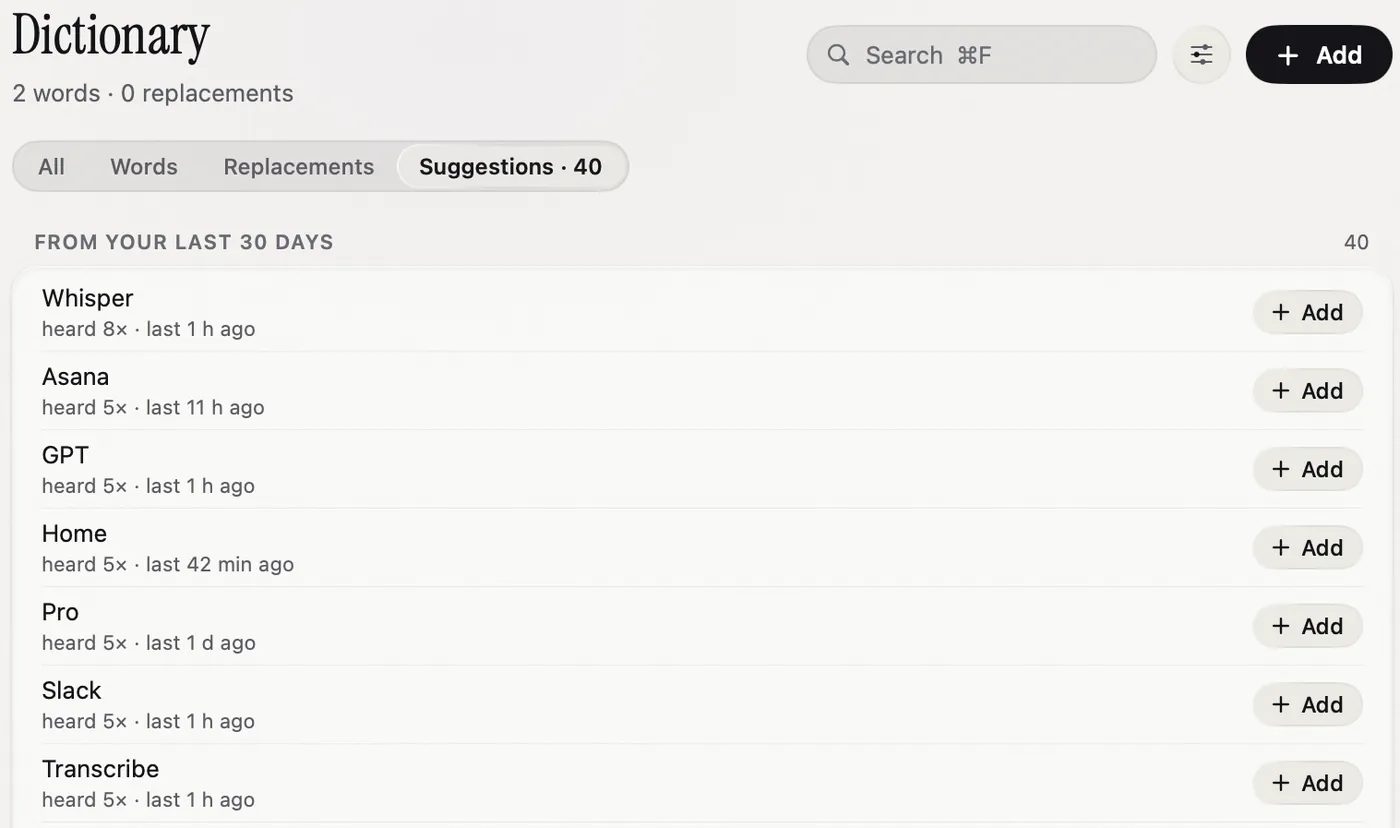
Add a word
- Click Add.
- Keep Word selected and type the word as it should be written.
- Press Return.
Add a replacement
- Click Add and choose Replacement.
- In When I say…, type the phrase. Separate spoken variants with commas, for example gonna, gunna.
- In Write instead, type what should appear.
- Press Return.
Replacements ignore capitals and match whole words. They run on every dictation, and again after any rewrite, so your dictionary has the last word. Nota will not save two rules that would swap each other back and forth.
Snippets
Choose the Snippets tab to add or edit a trigger and template body. Snippets run in ordinary dictation modes and are delivered without AI cleanup changing their body. See Code dictation and snippets for variables and terminal behaviour.
Let Nota learn from your fixes
When you correct a word in text Nota just pasted, Nota learns it a moment after you fix it and offers to remember the fix. Click Add or Add as replacement. You can undo it right away.
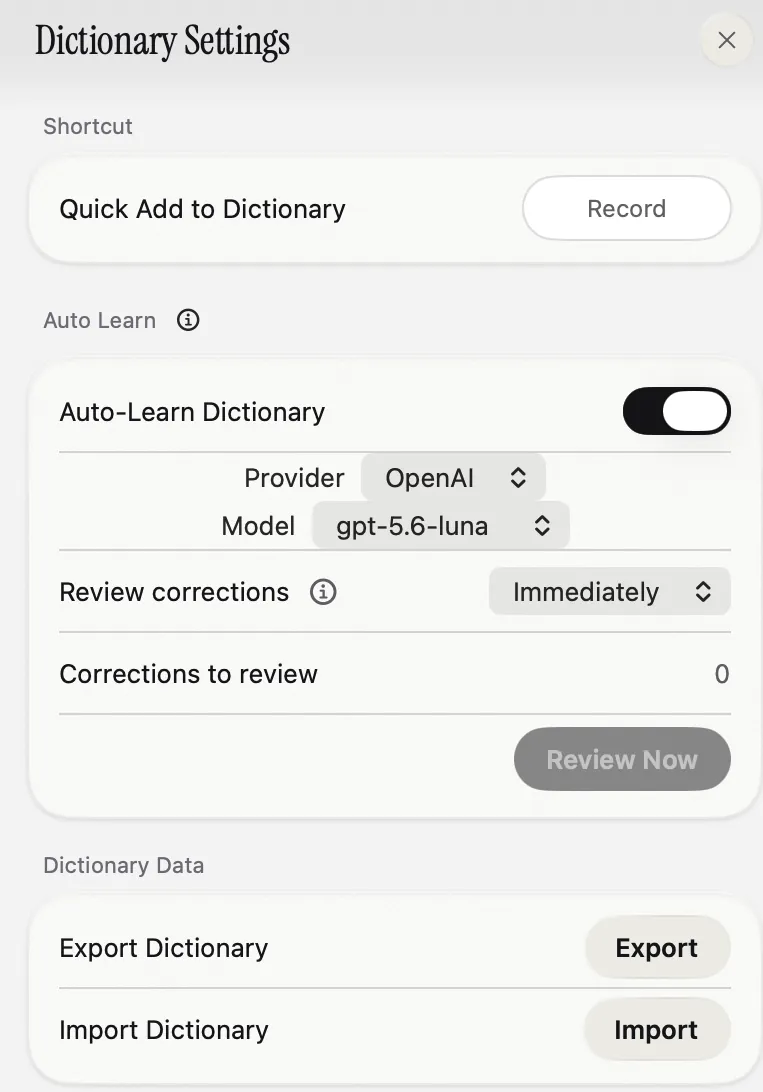
Control this in the Dictionary settings (the sliders button next to Add):
- Auto-Learn Dictionary turns it on or off. It uses the provider and model you choose here.
- Review corrections: Immediately asks each time. Manually collects them, and Review Now shows the list to accept or dismiss.
Suggestions
The Suggestions tab lists names and terms you said often in the last 30 days that are not in your dictionary yet. Click Add to keep one. Dismissed suggestions do not come back.
Quick Add
Set a Quick Add to Dictionary shortcut in Dictionary settings. It opens a small panel over any app, so you can add a word without leaving what you are doing.
Import and export
Signed in to iCloud? Your dictionary already syncs between your Macs through your private iCloud. Export is for backups and for sharing with someone else.
- Open Dictionary settings and click Export. Nota saves your dictionary entries as a JSON file; snippet entries are included by the current dictionary format.
- On another Mac, click Import and pick the file.
- Nota shows how many entries it found. Choose Merge to add them to what you have, or Replace to start fresh with the file.
The file uses Nota's own dictionary format. Import also opens dictionary files exported by older versions of Nota, but older versions cannot open files exported by this one.
Merge skips duplicates for you. Replace deletes your current dictionary first, so export it before if you are unsure.