Docs Using Nota
Settings
Appearance, pasting, the recorder position, and backups of your setup.
Open Settings in the sidebar, or press ⌘,. Use Search settings at the top to jump to any option. Sections that you changed have a Reset button to go back to the defaults.
Shortcuts and Smart Dictation have their own pages: Shortcuts, Smart Dictation.
Pasting
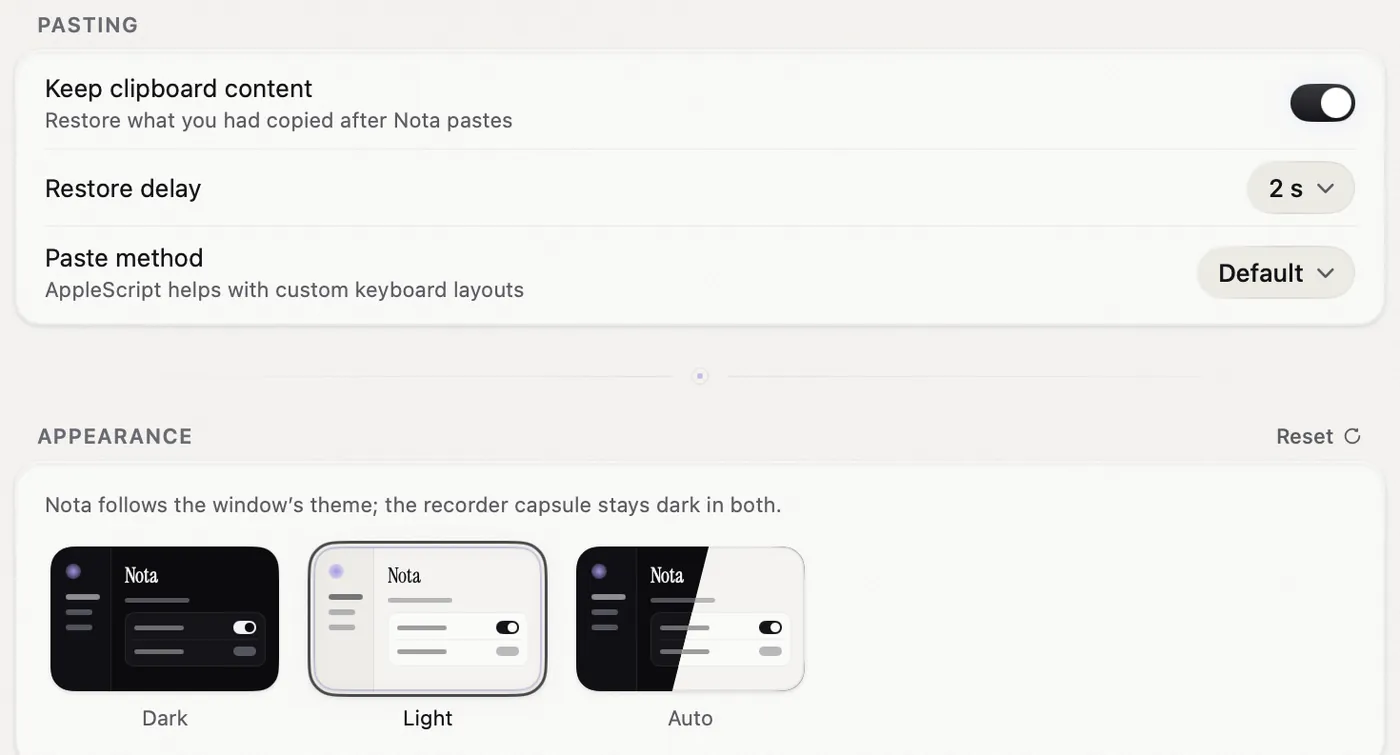
- Keep clipboard content (on): Nota pastes through the clipboard, then puts back what you had copied before. If you copy something new in the meantime, Nota leaves it alone.
- Restore delay (2 s): how long to wait before the clipboard is put back. Raise it if a slow app pastes the old clipboard.
- Paste method: Default works for most people. Choose AppleScript if you use a custom keyboard layout and pasting types the wrong thing.
Delivery checking can inspect whether the paste landed and keep an undo point for the inserted block. If the field cannot accept or verify the text, a result window can offer Copy. See Delivery and undo.
AI and privacy controls
- Voice Edit: select the AI used to edit existing text. Voice Edit guide.
- Meaning Guard: check rewrites for important details. Exact words and Meaning Guard.
- Privacy: password-field protection, local-only apps and sensitive-text masking. Privacy guide.
- AI apps: turn on local MCP access and approve individual abilities and clients. AI apps guide.
- API Budget: monthly estimates and behaviour at a spending threshold. API usage and budget.
Recording shortcuts and hands-free controls live on the separate Shortcuts page. Notebook has its own settings for speech mode, call audio, Tidy AI, Markdown folders and meetings.
Appearance
Choose Dark, Light or Auto (follows macOS). The recorder pill stays dark in both.
Interface
- Language: the language of Nota's menus. Takes effect after Nota restarts.
- Recorder position: where the pill lives. Notch, Bottom, Left or Right.
- Panel detail: whether the pill starts small or with its buttons showing.
General
- Hide Dock icon: Nota lives in the menu bar only.
- Launch at login: start Nota when you log in.
- Show announcements: occasional notes from Nota inside the app.
- Reset onboarding: run setup again. Your modes and settings stay.
- Check for updates: look for a new version now.
Back up and restore
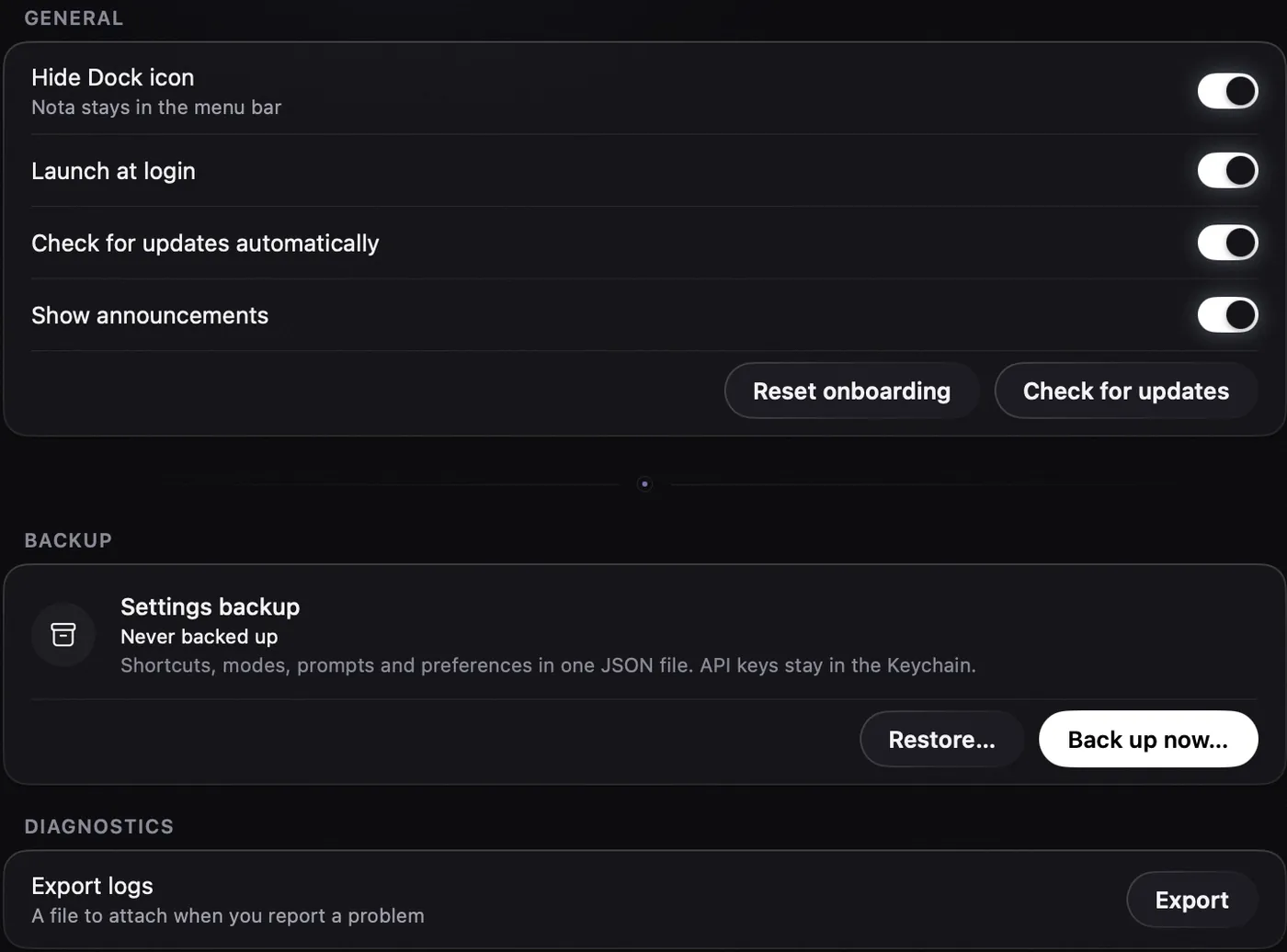
- Click Back up now… and save the file. It is one JSON file with your shortcuts, modes, prompts, dictionary, custom models and preferences.
- To restore, click Restore… and pick the file.
- Choose All, or only some parts: General, Custom prompts, Modes, Dictionary, Custom model definitions.
- Add your API keys again in Models › Providers. Nota reminds you.
A backup does not contain API keys, your license, History, recordings or downloaded models. The Backup card shows when you last backed up.
Diagnostics
Export logs saves a file with recent technical notes from Nota. Attach it when you write to support.
License
Shows your plan. Manage opens the license page. See License.