Docs Getting started
Install Nota
Download the app, move it to Applications and open it. Setup takes about two minutes.
What you need
- A Mac with macOS 14.4 or later.
- One download runs natively on Apple silicon and on Intel Macs. Apple silicon (M1 or newer) is best. On Intel Macs local models are not reliable, so use cloud models, see Intel Macs.
- About 500 MB of free space for the starter speech model. Larger models need up to 3 GB.
Install
- Download Nota from the download page. You get a file called Nota-latest.dmg.
- Open the file. Drag Nota into your Applications folder.
- Open Nota from Applications or Launchpad.
- You see Welcome to Nota. Click Get Started. Setup takes less than two minutes.
What setup asks for
Setup has seven short steps. You can go back at any time.
- Permissions. Allow the microphone and Accessibility. See Permissions.
- Microphone. Pick the microphone you want. Speak and watch the light answer, so you know it hears you.
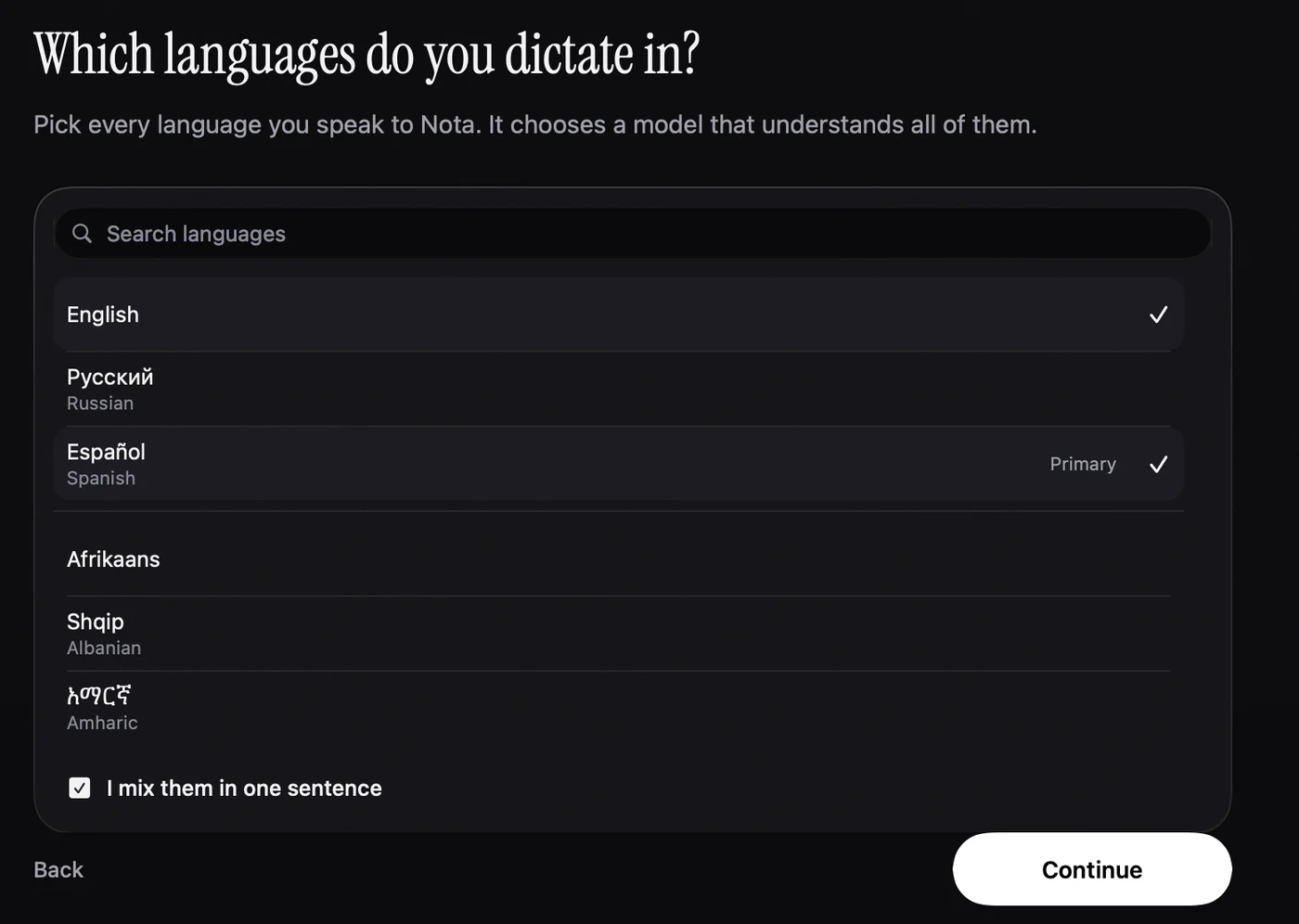
- Languages. Choose the languages you dictate in, and say whether you mix them in one sentence. Nota uses this to suggest a model and to set up a mode for each language.
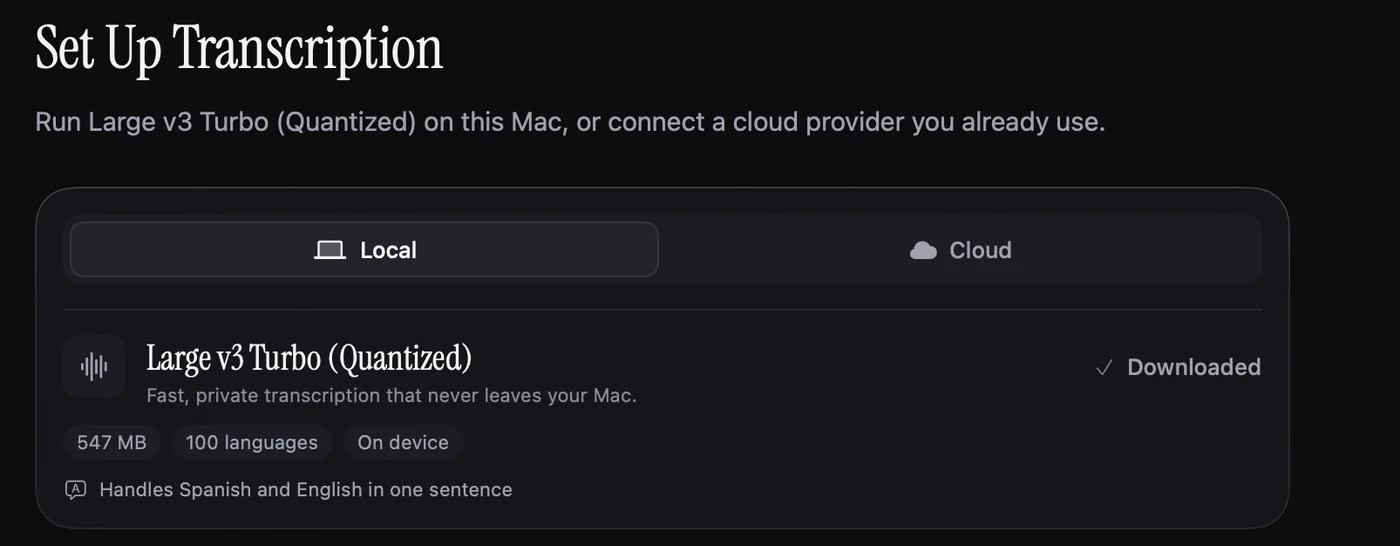
- Model. Nota suggests a model for your languages. Choose Local to download it and run it on your Mac, free. Or choose Cloud and paste an API key from a provider.
- Simple dictation. Record your shortcut, then read a sample sentence aloud.
- Cleanup. Try a sentence with a filler word and a correction.
- Email. Dictate a short email.
When you finish, Nota opens its main window. Your first three modes (Dictation, Enhancement and Email) are ready to use.
In a hurry? Skip setup on the welcome screen skips everything. You can run setup again later from Settings › General › Reset onboarding. Your modes and settings are kept.
Updates
To check for a new version, open the menu bar icon and choose Check for Updates…, or use the button in Settings › General. When an update exists, Nota shows the release notes and asks before it installs.
Uninstall
If you have Nota Pro, first open Manage License and click Deactivate this Mac. This frees the Mac on your license. Then quit Nota and drag it from Applications to the Trash.