Docs Using Nota
Customize the orb
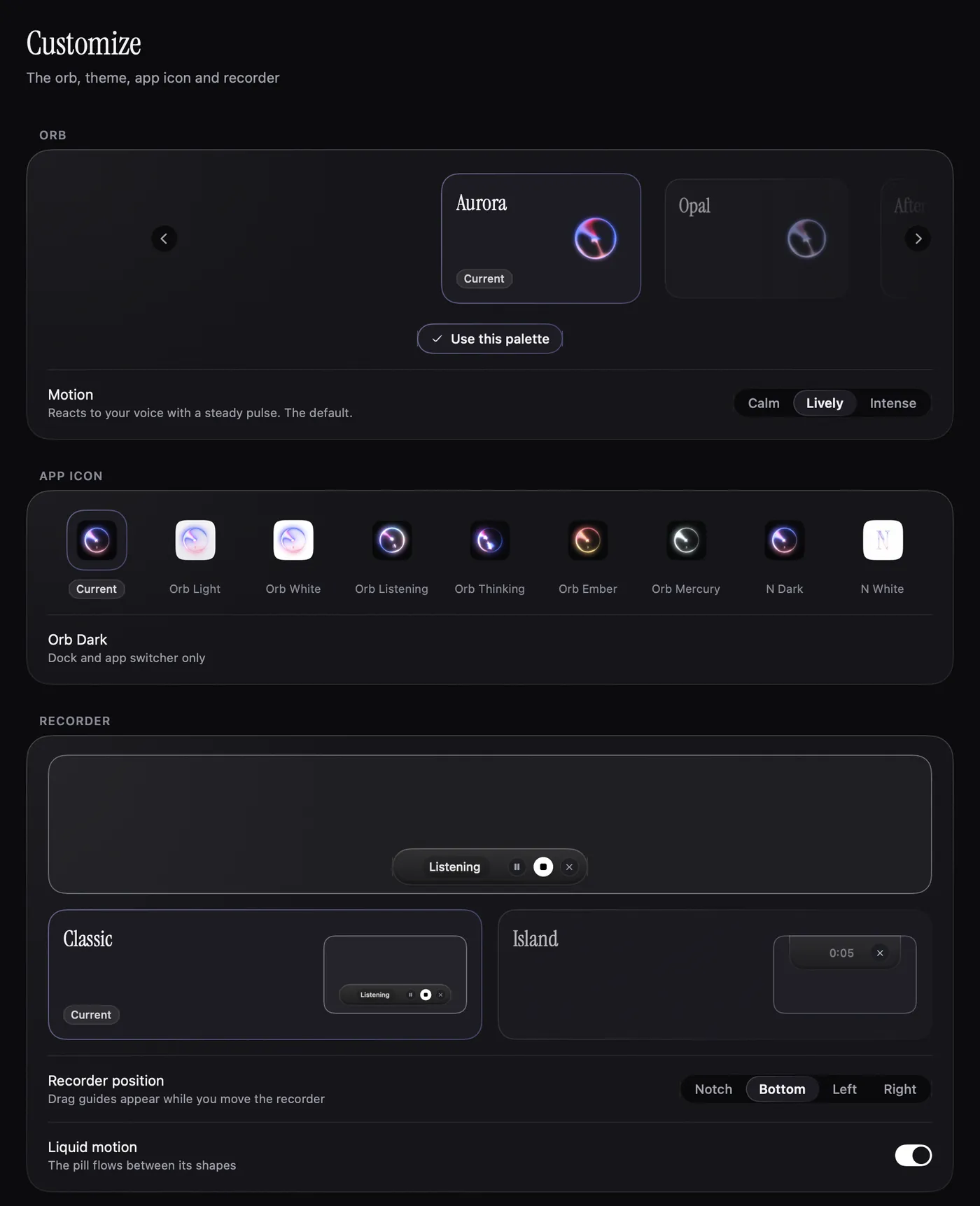
Pick the orb's colours (Aurora, Opal, Afterglow, Moonstone, Mercury, Ember or your own) and how lively it moves.
These docs describe the upcoming Nota release. Public launch and purchases are not open. Join the release waitlist.
The orb is the glowing sphere in the recorder pill, on Home and in the sidebar. Open Settings › Look & Sound, which shows the Customize page, to change its colours and how it moves. The rest of the app's dark panels take on the same colours.
The same pane also sets the recorder (Settings), the sounds and the theme. Reset to defaults at the bottom puts palette, motion, theme and recorder back. A custom palette is lost.
What the orb shows
| State | What the orb does |
|---|---|
| Idle | A slow, steady glow while Nota waits. |
| Listening | The light moves with your voice: louder speech, bigger movement. |
| Thinking | The light circles from the moment you stop until the text is pasted. |
| Done | The ring closes with a short flash when the text is in place. |
Click the orb and it answers with a soft pulse.
Pick a palette
Nota starts with Aurora: blue-violet with rose highlights. The other palettes are Opal, Afterglow, Moonstone, Mercury and Ember.
- Swipe the cards, click the arrows or press ← and →. The orb on the left shows the palette in focus.
- Click Use this palette. Nothing changes until you do. The palette in use is marked Current.
Make your own colours
The last card, Custom, opens an editor with three colours (Warm, Cold, Rose) and the Glow colour.
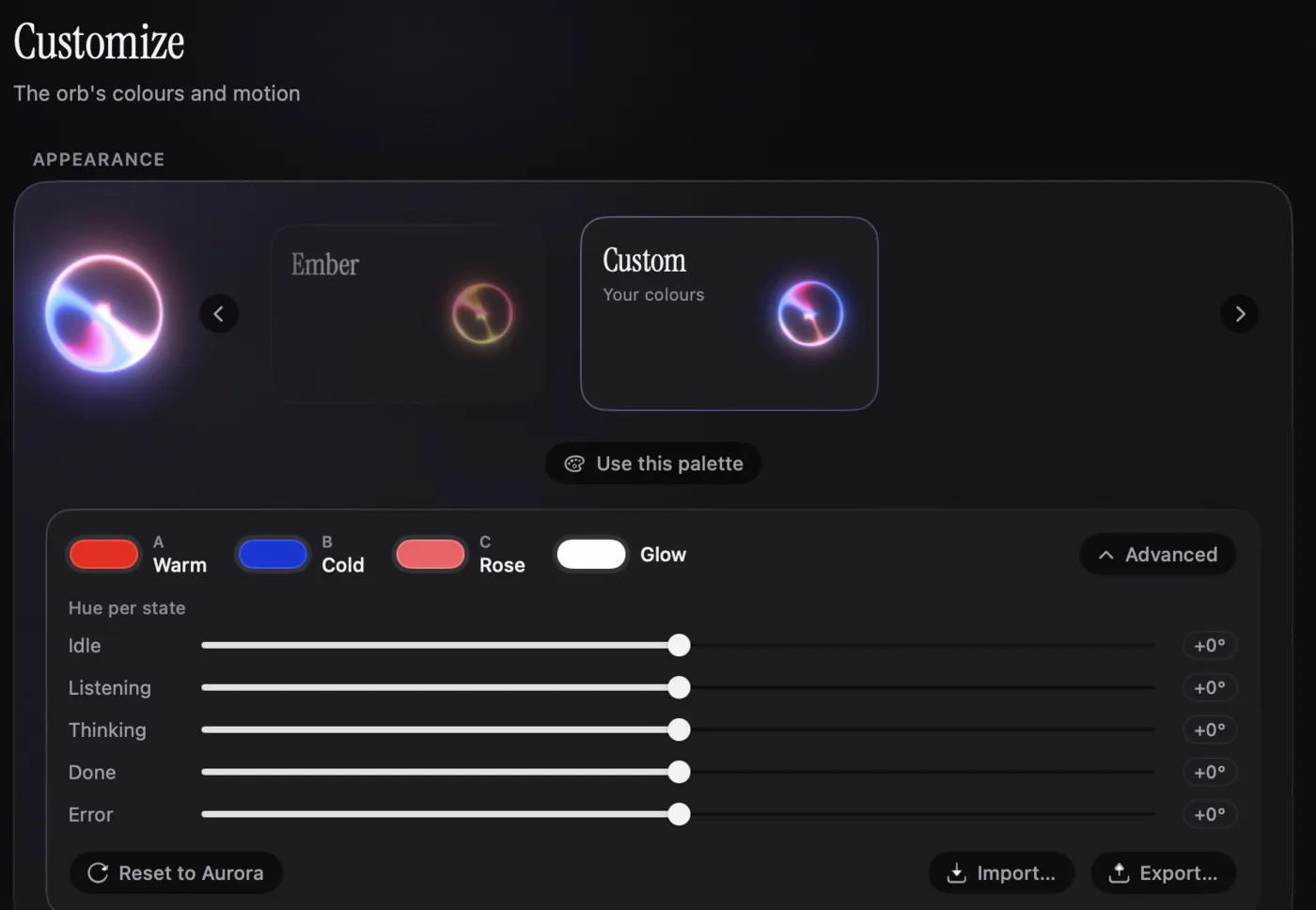
- Advanced shifts the hue for each state, up to 30 degrees either way.
- Export… saves the palette as a file. Import… loads one.
- Reset to Aurora goes back to the default colours.
Motion
- Calm: slow, small movements. The quietest orb.
- Lively (the default): reacts to your voice with a steady pulse.
- Intense: bigger movements, faster while Nota processes your text.
If Reduce Motion is on in System Settings, the orb holds still. Your choice applies when it is off.