Docs Getting started
Your first dictation
Press your shortcut, talk, press it again. The text appears where your cursor is.
- Click into any text field. For example, open TextEdit and start a new document.
- Press your recording shortcut. You chose it during setup. The pill appears and says Listening.
- Say a sentence in your normal voice. No need to say punctuation.
- Press the shortcut again. The pill shows Transcribing, then a short tick.
- The text appears where your cursor was.
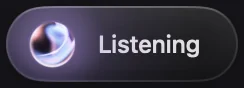
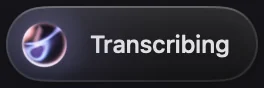
That's it. Every dictation is also saved in History, so you never lose one.
Hold instead of press twice
With the default trigger, Auto, you can also hold the key while you talk and let go when you are done. A quick double tap starts a hands-free dictation that runs until you press the key again. See Shortcuts.
Changed your mind?
Press Esc twice to cancel. Nothing is pasted. For 5 seconds you can click Undo to get the dictation back.
Other ways to start
- Click Start dictation on the Home page.
- Open the menu bar icon and choose Toggle Recording.
- Press a mode's own shortcut. It switches to that mode and starts listening. See Modes.
Tips for good results
- Speak in whole sentences. Models do better with context than with single words.
- Pauses are fine. Nota cuts long silences before it transcribes.
- Say names you use often once, then add them to the Dictionary.
- If nothing was heard, the pill hides and a short notice says so. Nothing is pasted.